¶ MRD File Tracking – Issue Records
¶ Overview
The MRD (Medical Records Department) is responsible for maintaining and managing patient medical records in the hospital. The Issue Records page allows authorized users to issue patient medical records to employees for a defined period. The following steps are covered on this page:
¶ How to Navigate to Issue Records
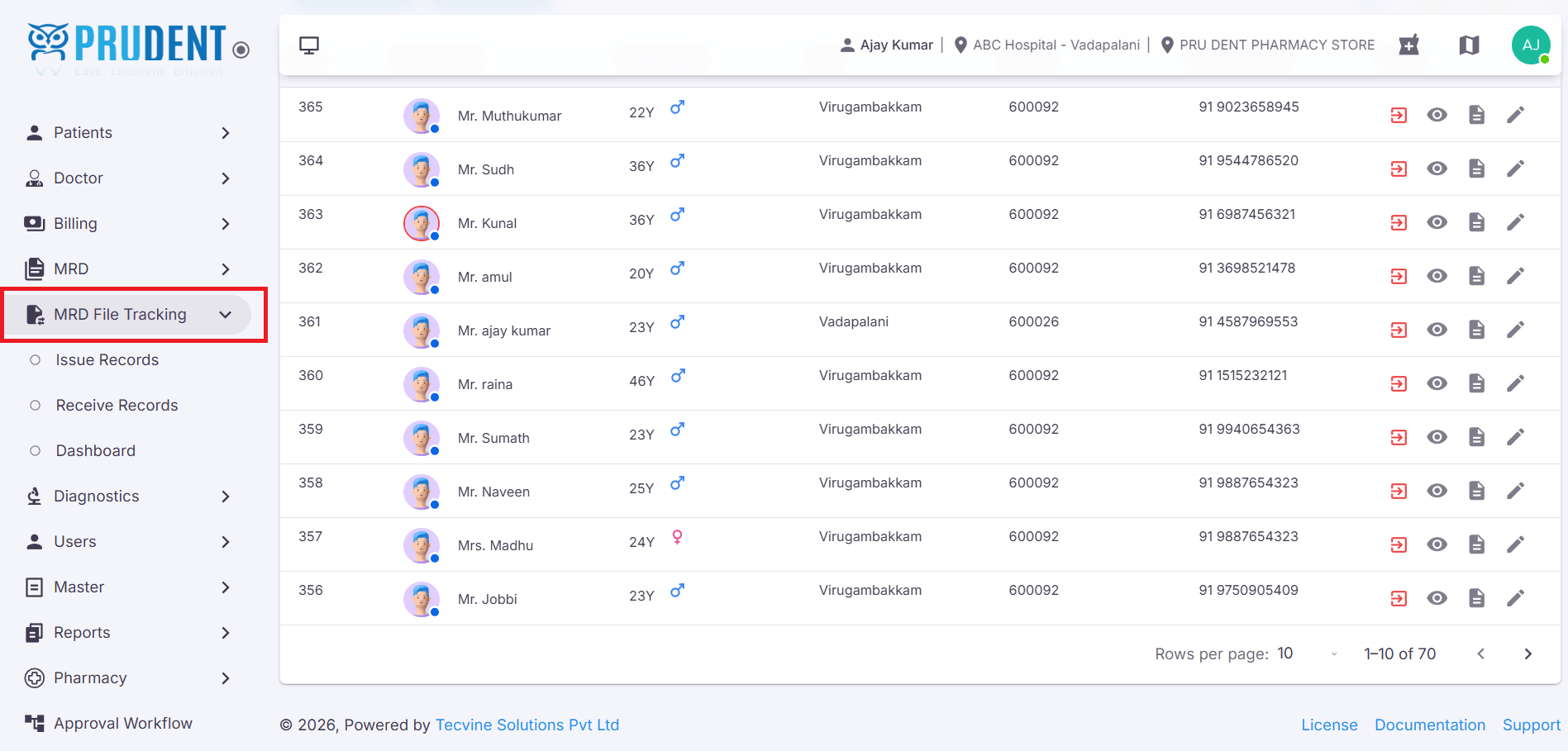
Follow the steps below to navigate to the Issue Patient Records page from the sidebar menu.
- Click the MRD File Tracking option from the sidebar menu.
- The submenus will expand when you click this menu.
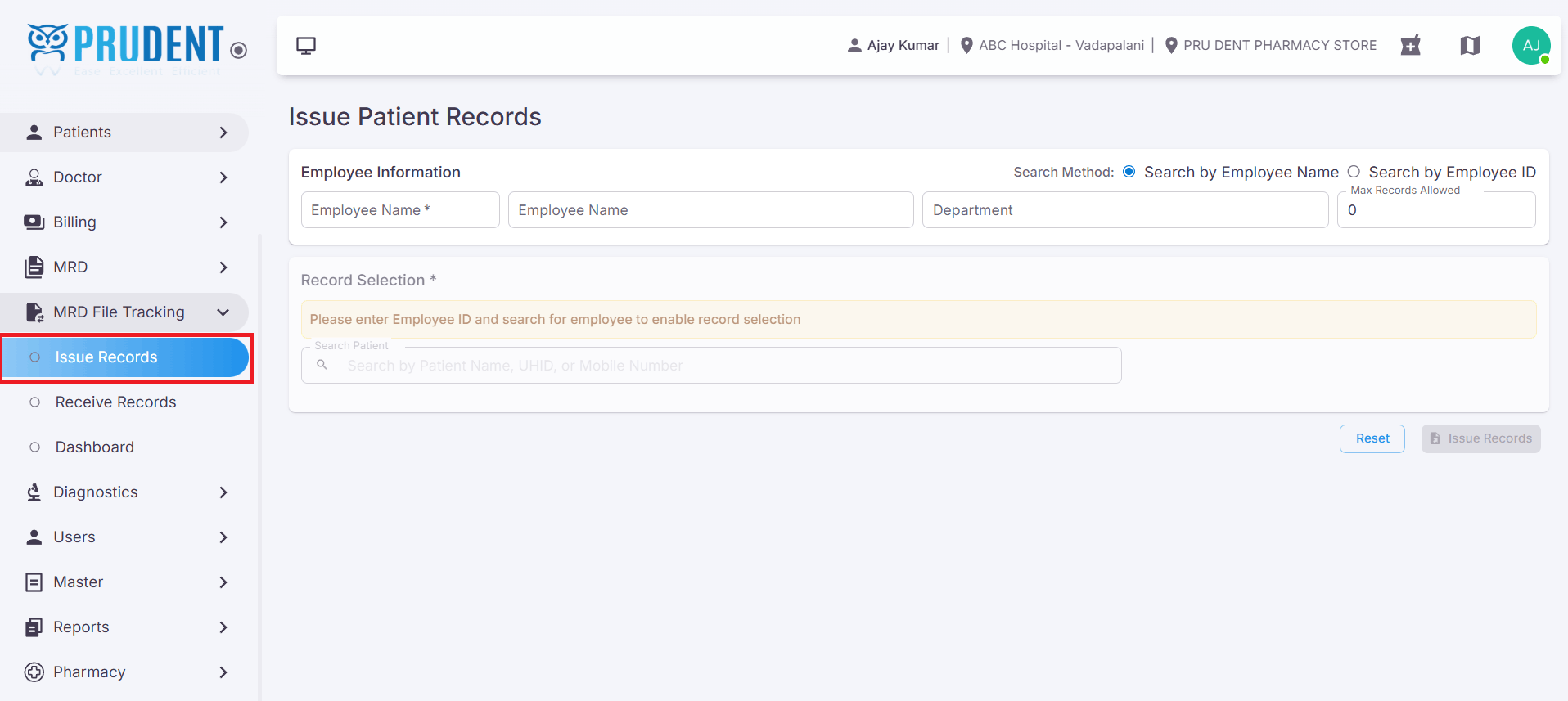
- Click the Issue Records submenu.
- The system will navigate to the Issue Patient Records page.
¶ Steps to Issue Records
Follow the steps below to complete the record issuance process.
¶ Employee Details
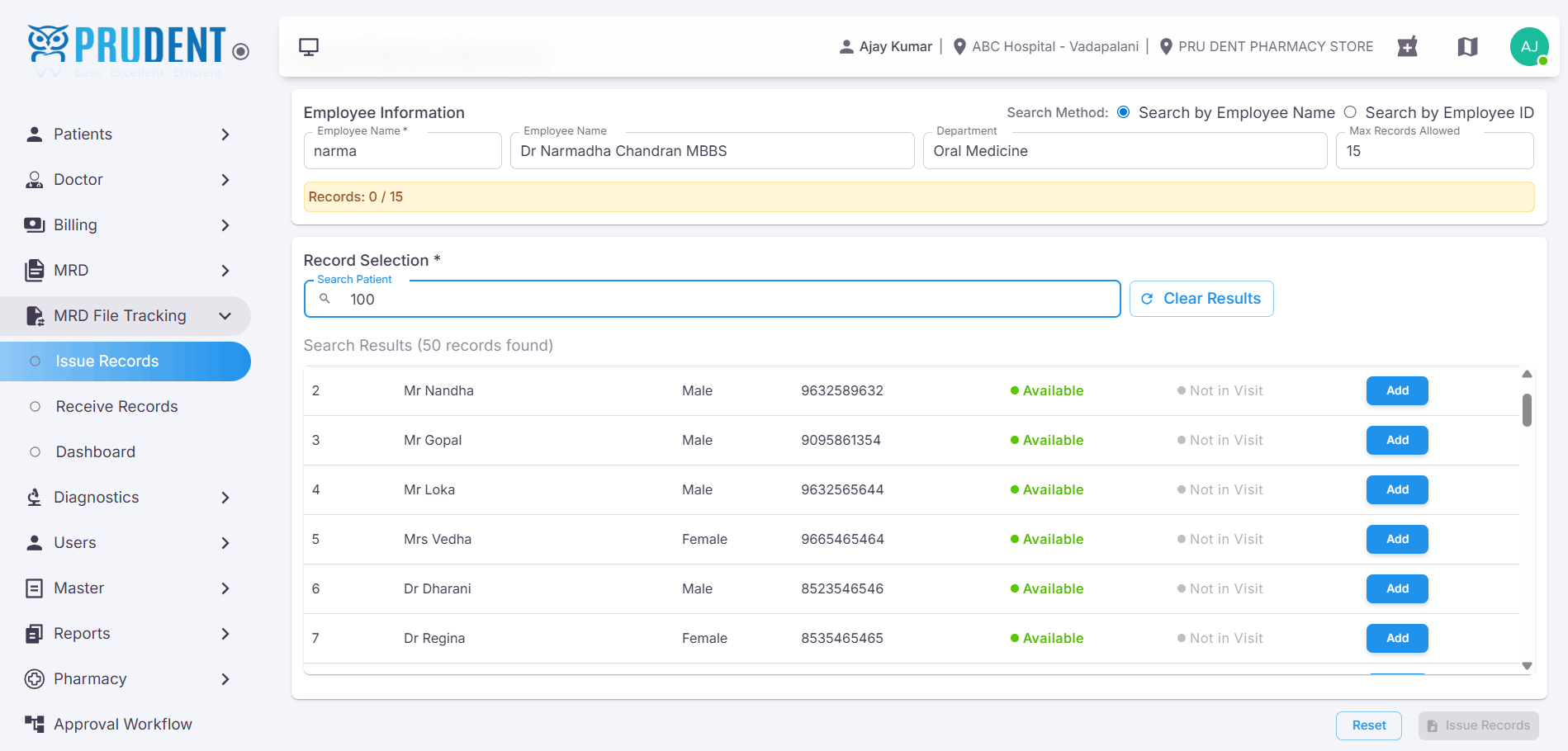
Search and select the employee to whom the records will be issued. The department and record limit details will be auto-populated upon selection.
- Enter the employee name in the Employee Name field and select from the search results.
- The Department of the selected employee will be automatically displayed.
- The Maximum Records Allowed (Record Limit) for the employee will also be auto-populated.
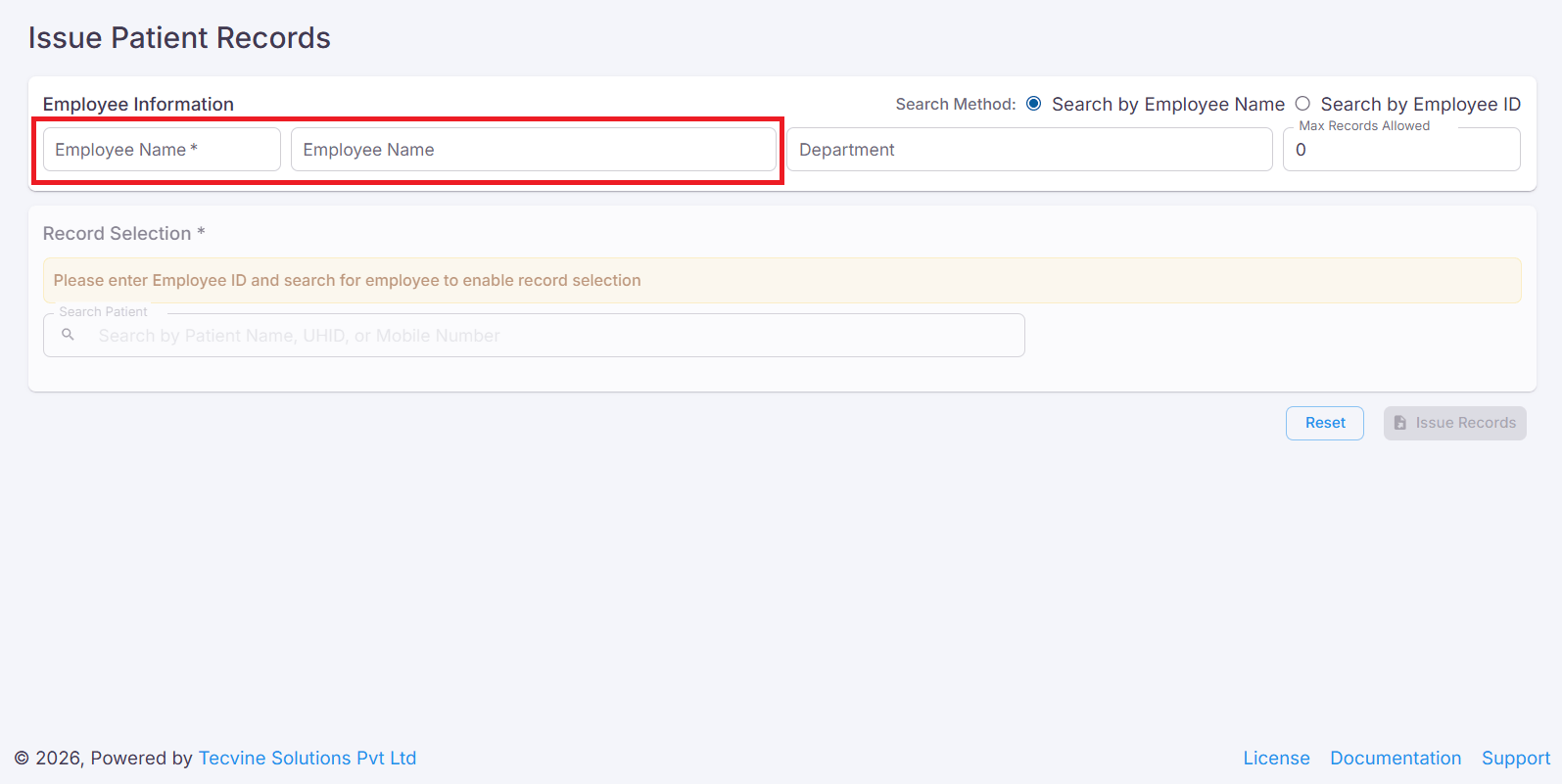
Note: By default, an employee can be issued up to 15 records at a time.
¶ Search Patient
Search for a patient using any of the available search criteria. The matching patient information will be displayed below the search field.
You can search for a patient using any of the following details:
- Patient UH ID
- Patient Name
- Patient Mobile Number
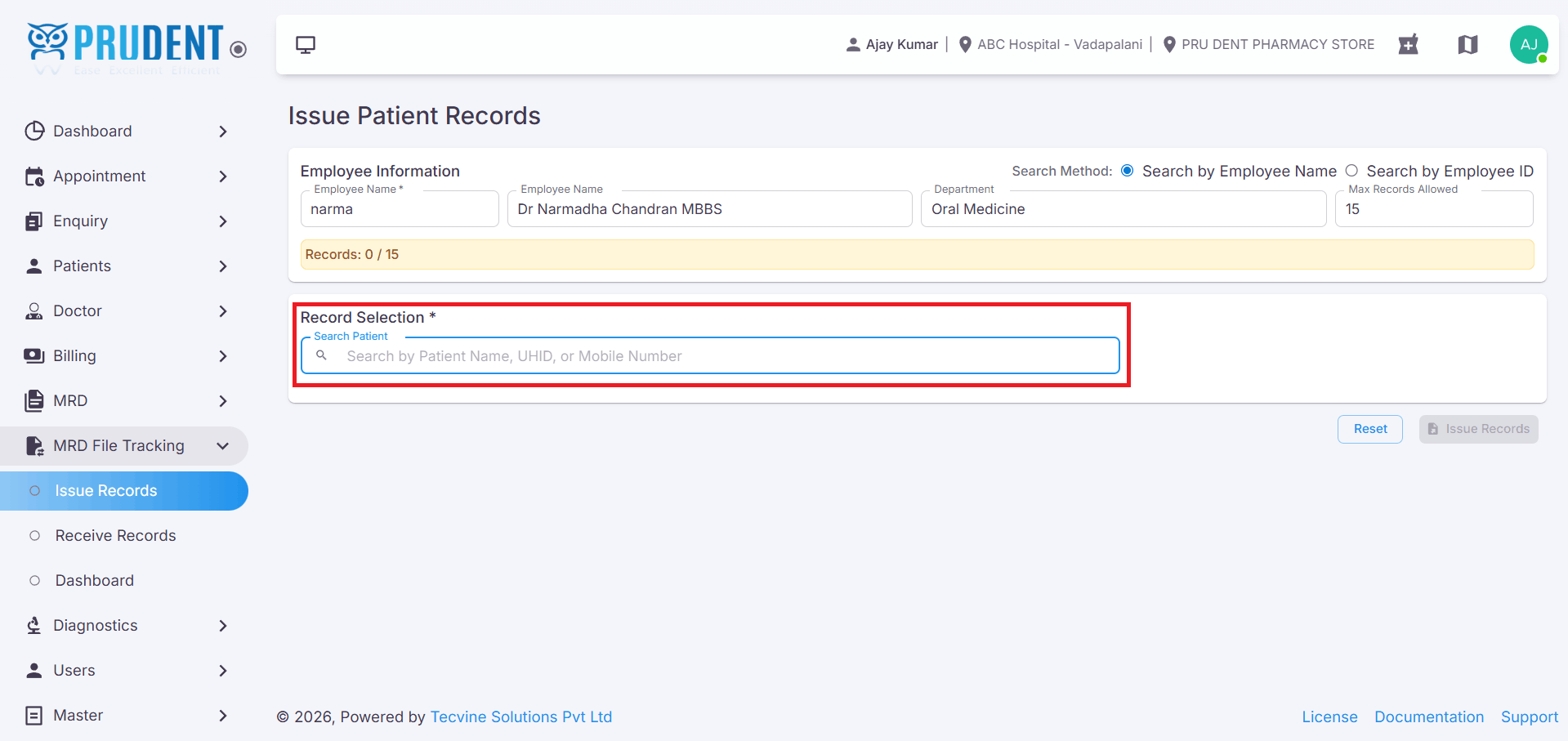
After entering the search details, the patient information will be displayed below.
¶ Adding Records
Add the searched patient record to the issue list and configure the required details before issuing.
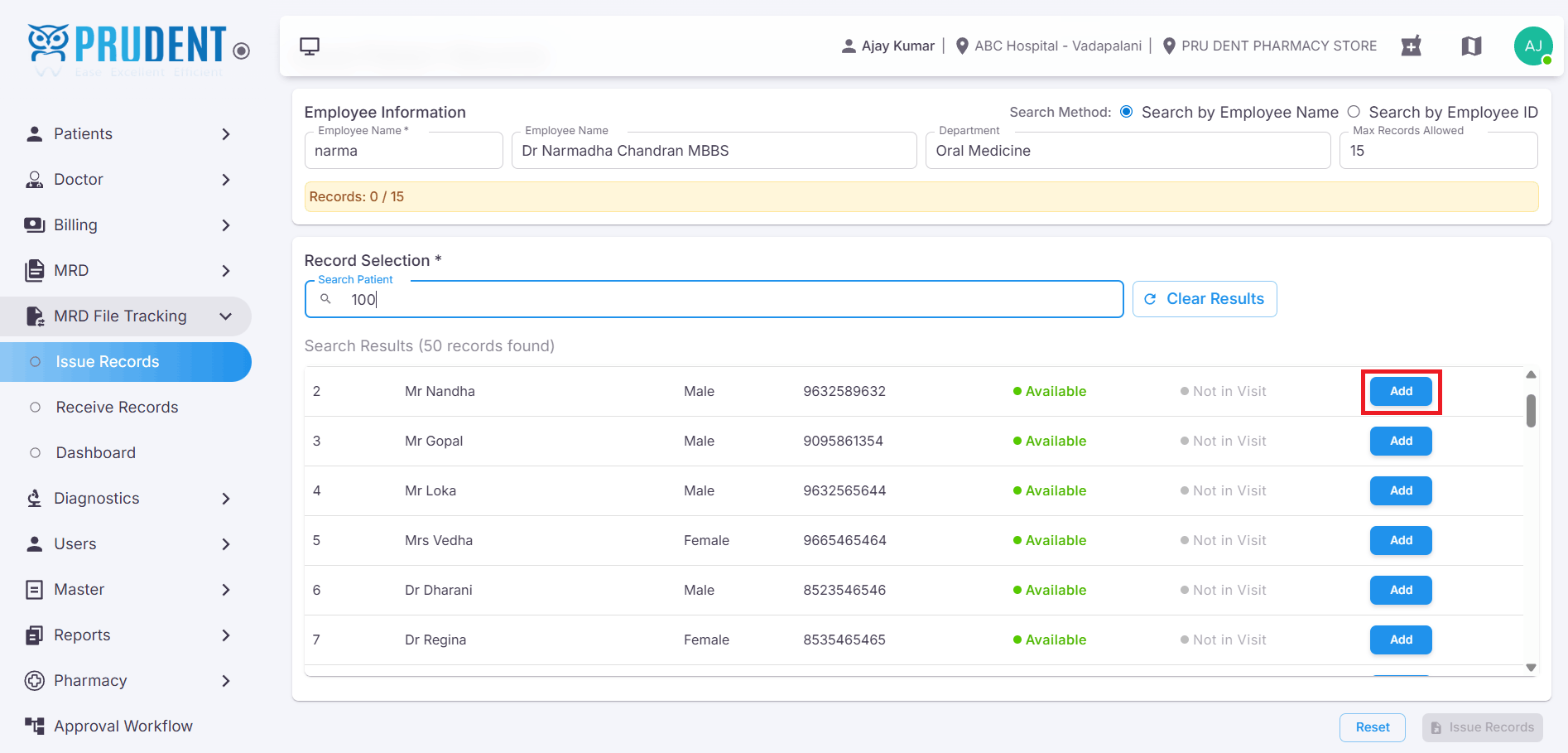
- Click the Add button to add the patient record to the issue list.
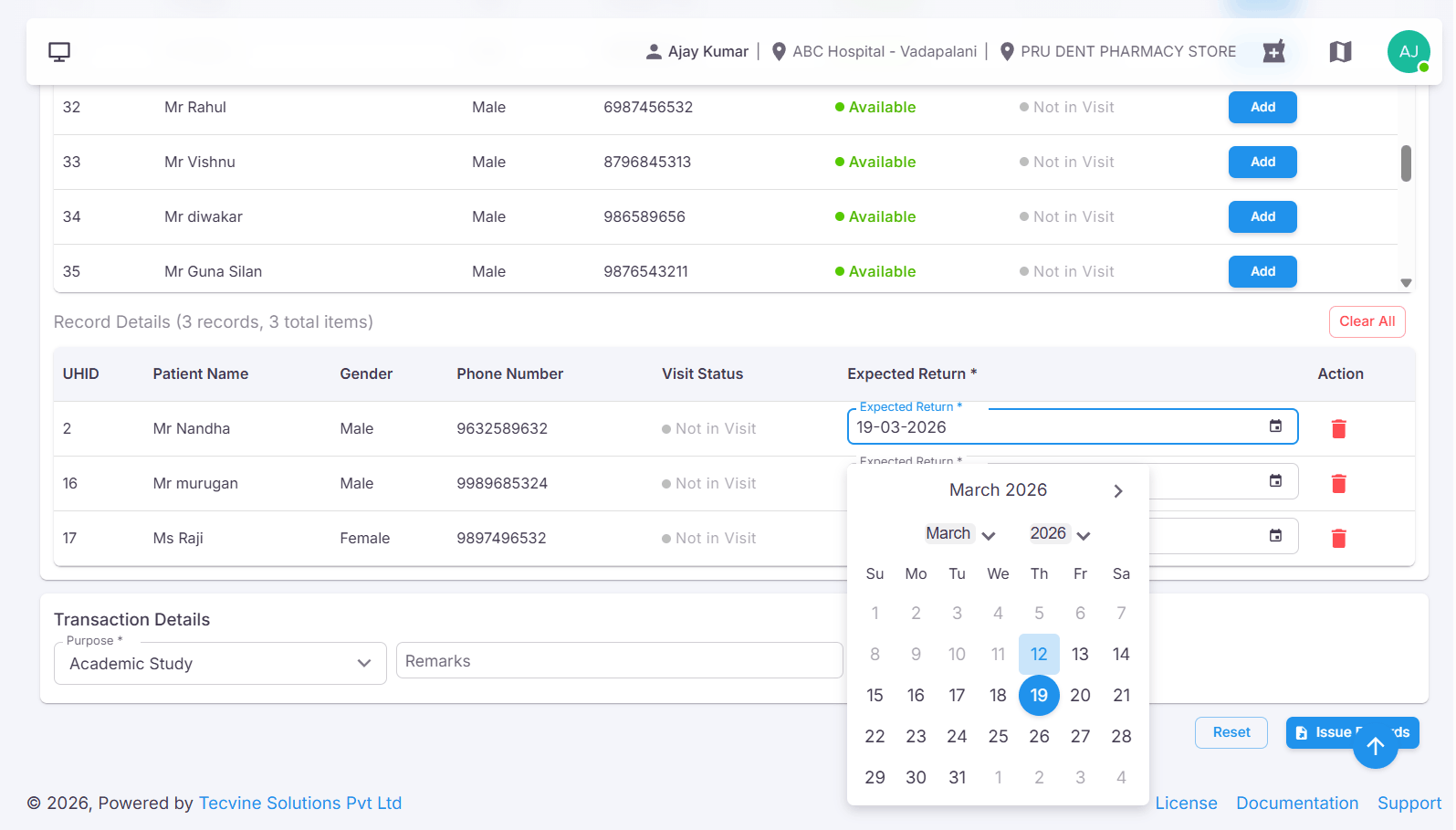
- The Expected Return Date will be automatically set to one week from the issue date.
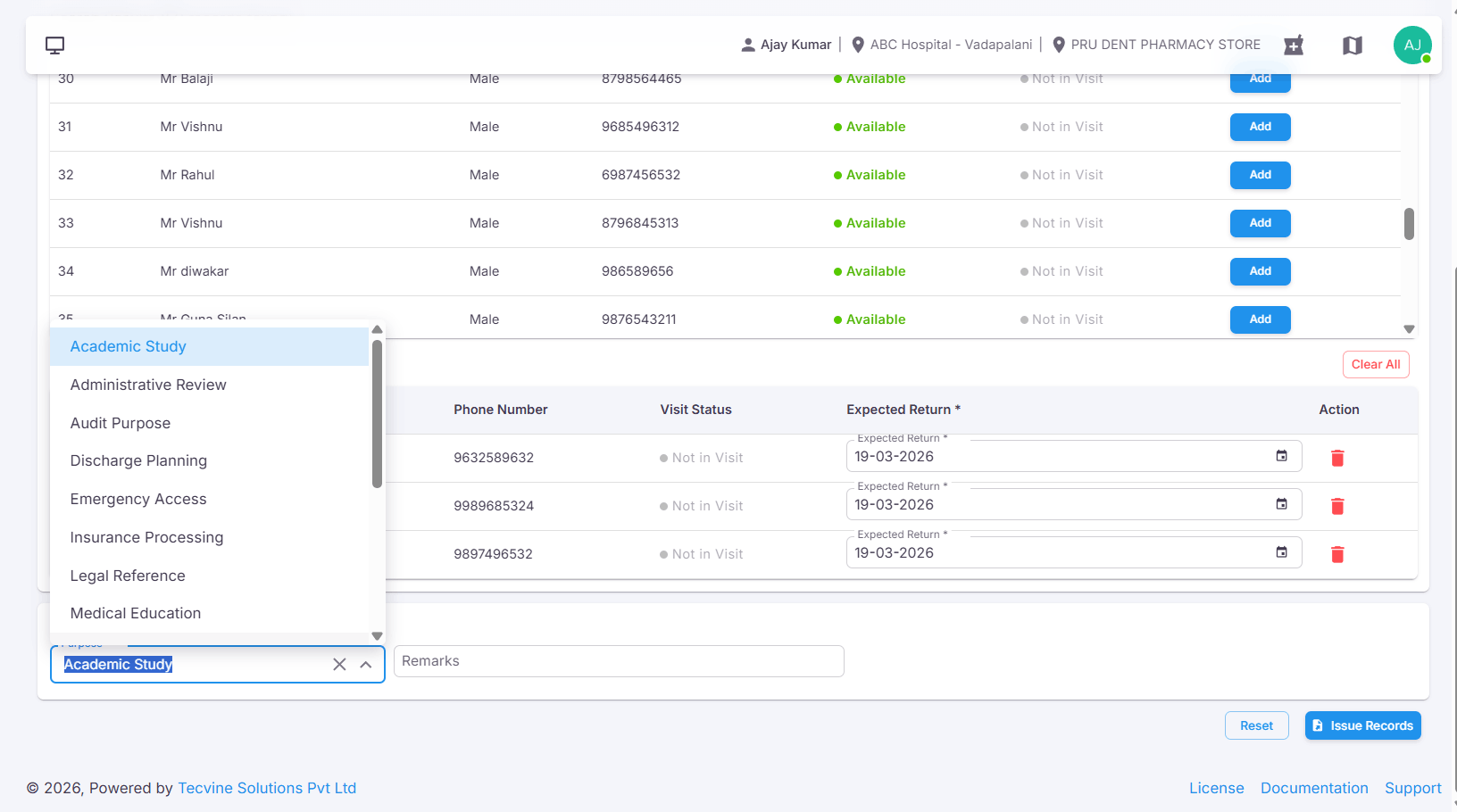
- Select the Purpose for issuing the patient record from the dropdown.
- The added record will appear in the issue list below.
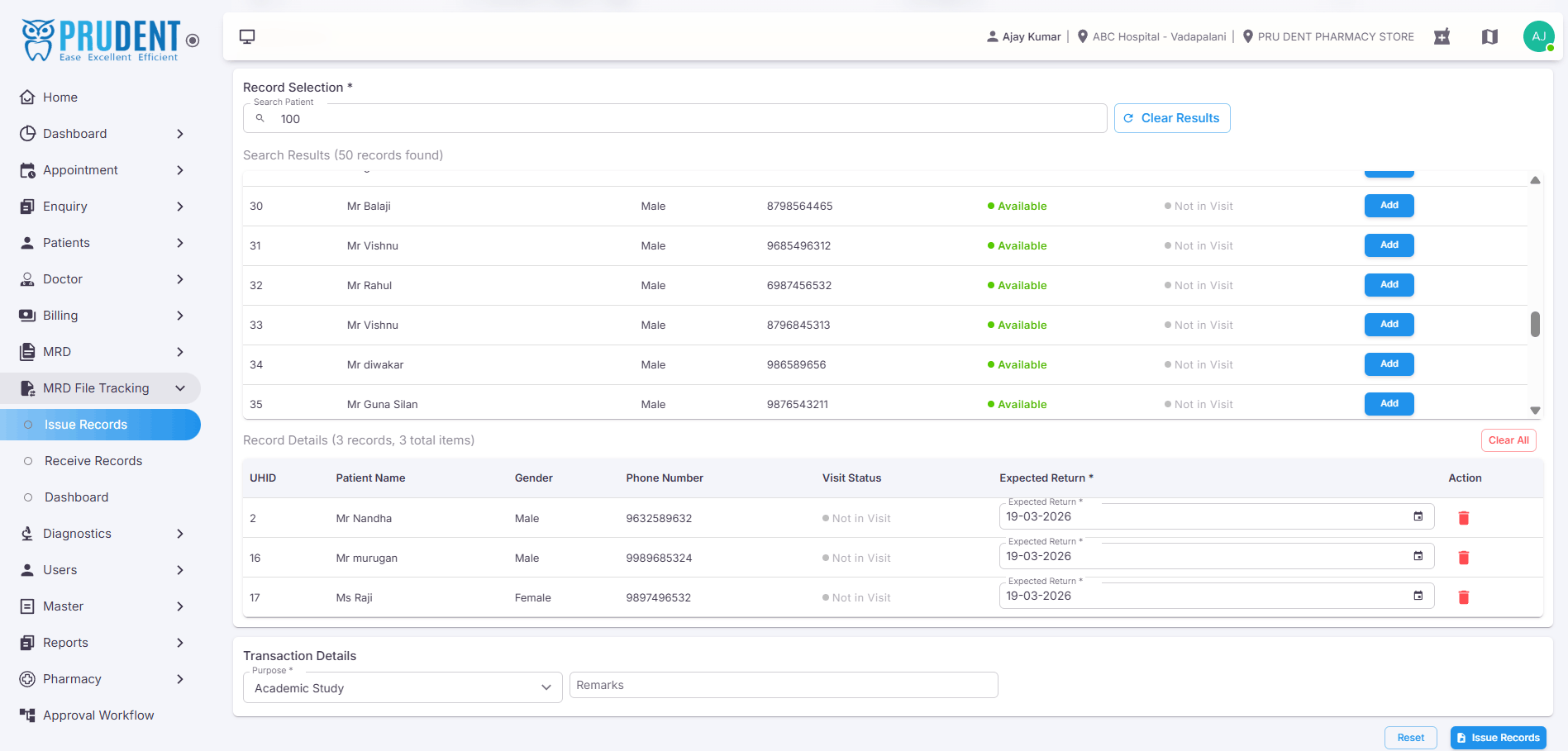
Tip: You can add multiple patient records to the issue list before clicking Issue Record, as long as the total does not exceed the employee's Record Limit.
¶ Issuing Records
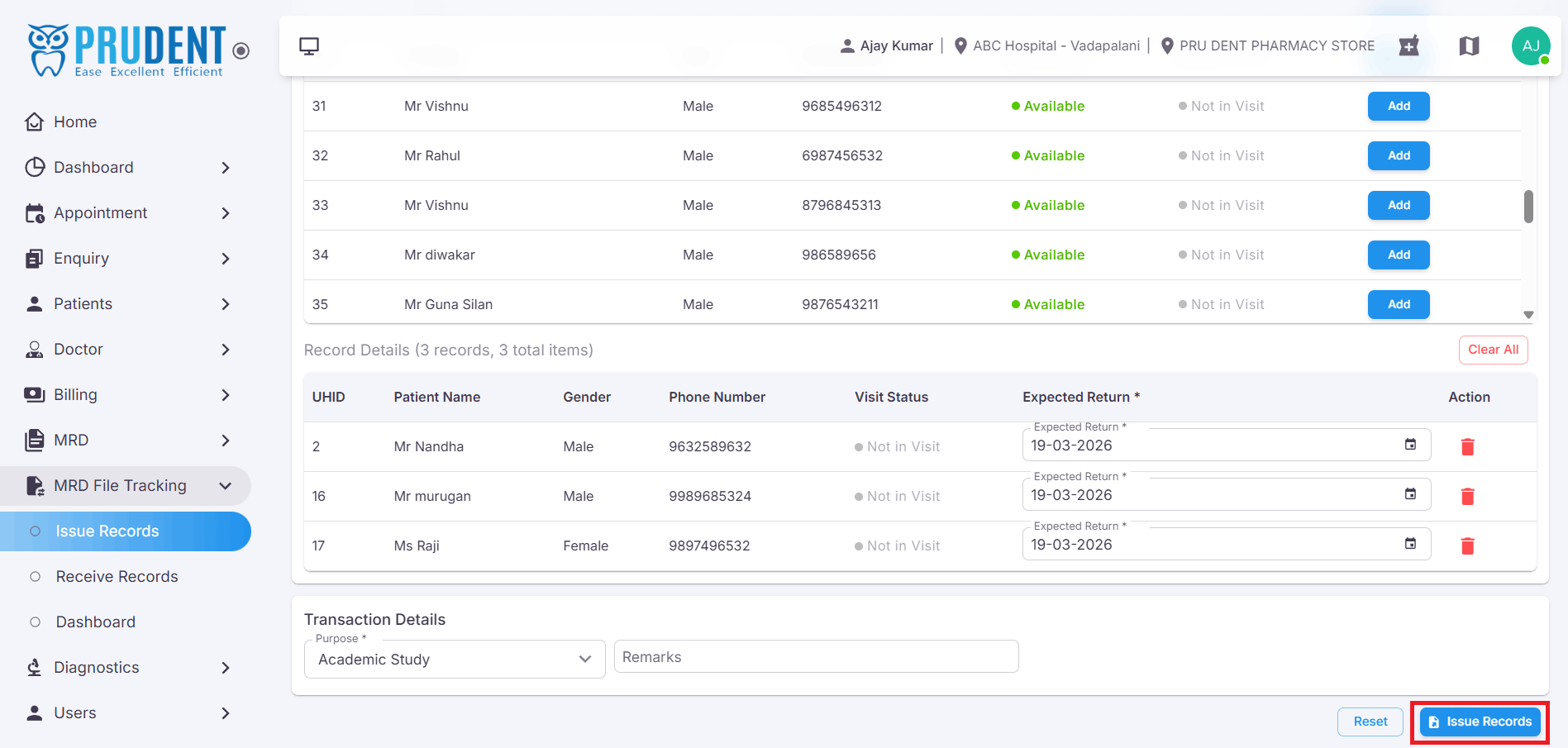
Once all records have been added to the list, click the Issue Record button to proceed. A confirmation popup will appear before the action is finalized.
- Click the Issue Record button.
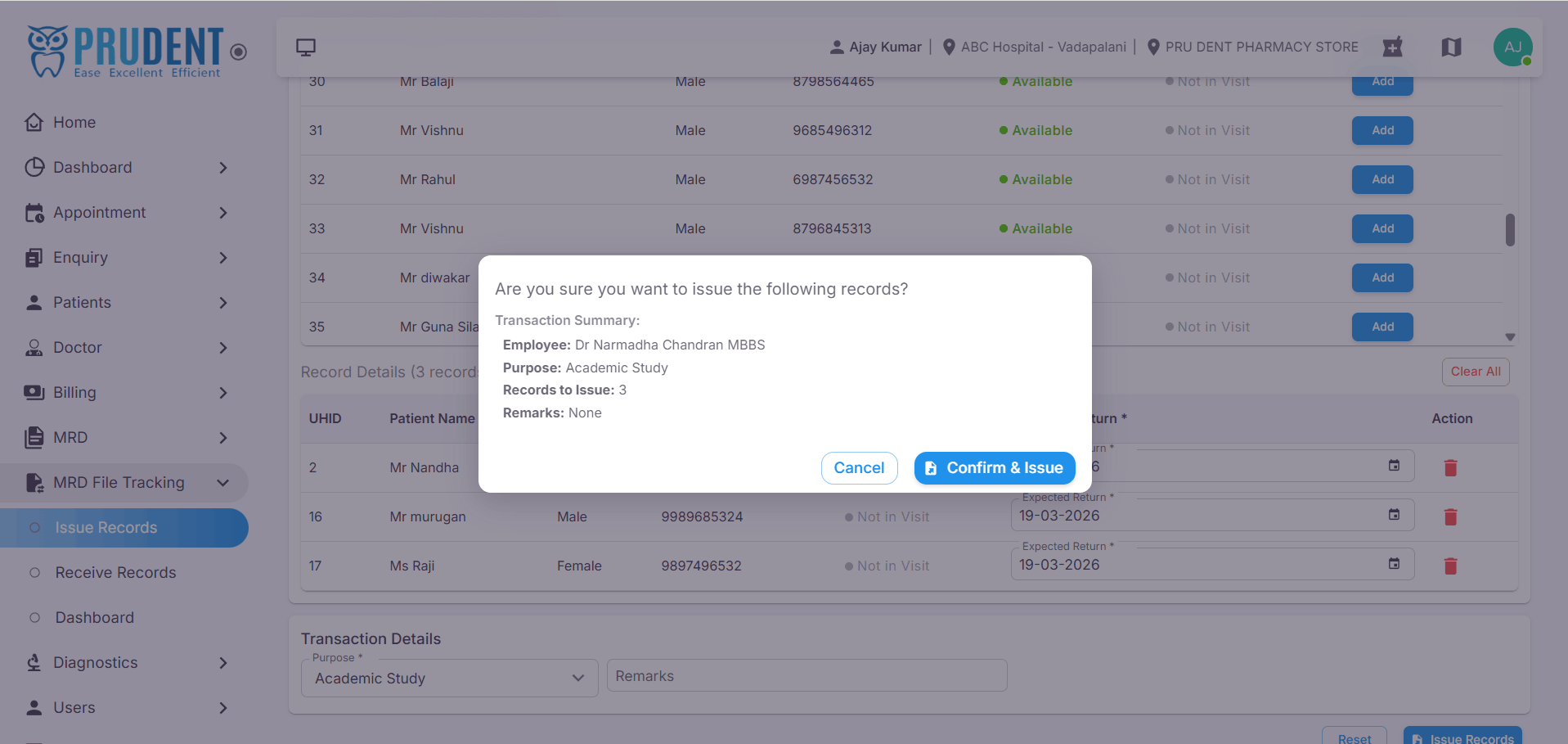
- A confirmation popup will appear on the screen.
- Click Confirm & Issue to proceed with issuing the records.
¶ Confirmation
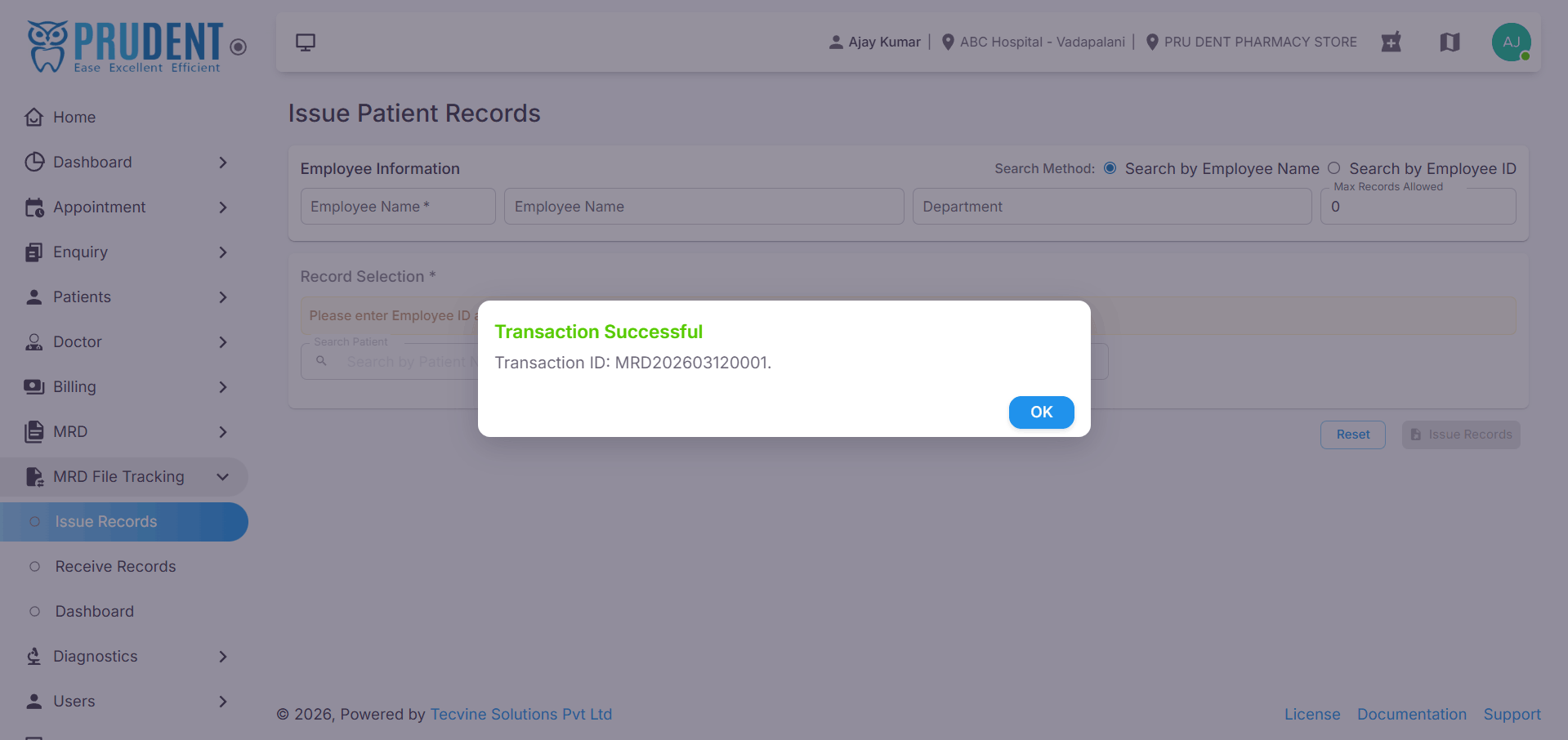
After the records are issued successfully, a success message will appear on the screen with the generated Issue ID.
- A success message will appear with the Issue ID upon successful issuance.
¶ Video Tutorial
Watch this step-by-step video guide to learn how to create a visit in the system.