¶ Purchase Order
¶ Overview
The Purchase Order (PO) module is used to create, manage, approve, edit, cancel, print, and close purchase orders for medicines from suppliers.
- PO Creation – Create purchase orders for selected suppliers.
- PO Management – Approve, reject, edit, cancel, print, or close POs.
¶ How to Navigate to Purchase Order
- Log in and go to the Purchase Module.
- Click PO Creation to create a new PO.
- Click PO Management to manage existing POs.
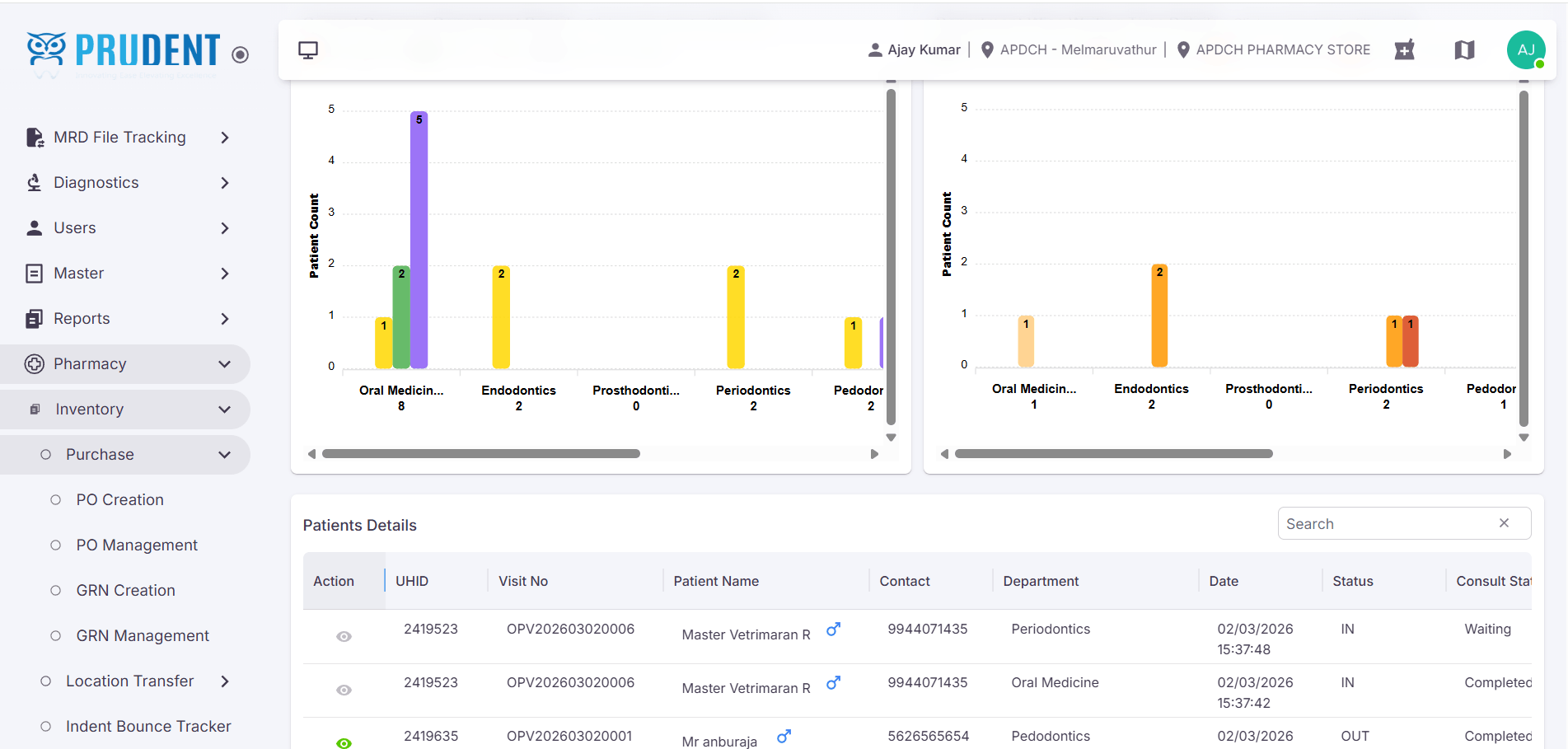
¶ Purchase Order (PO) Creation Process
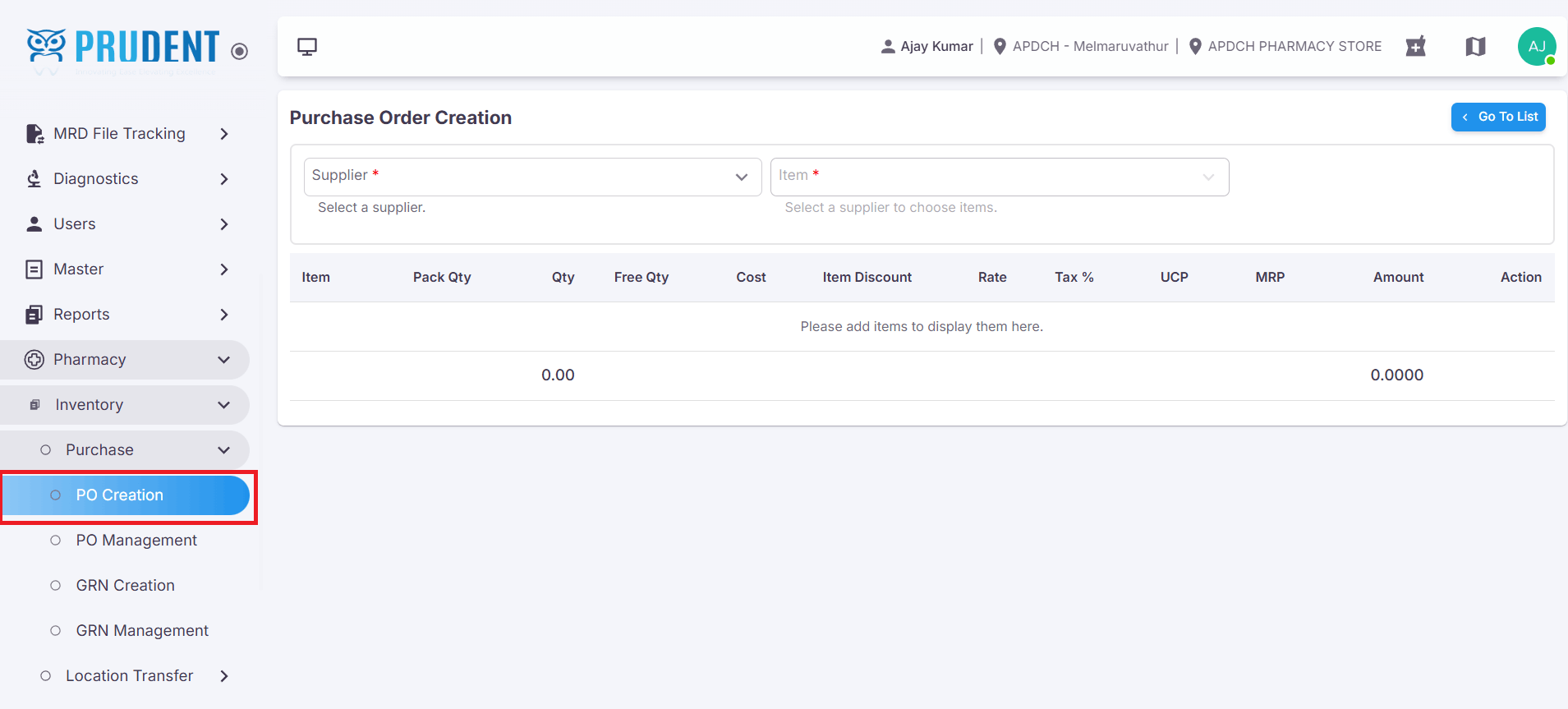
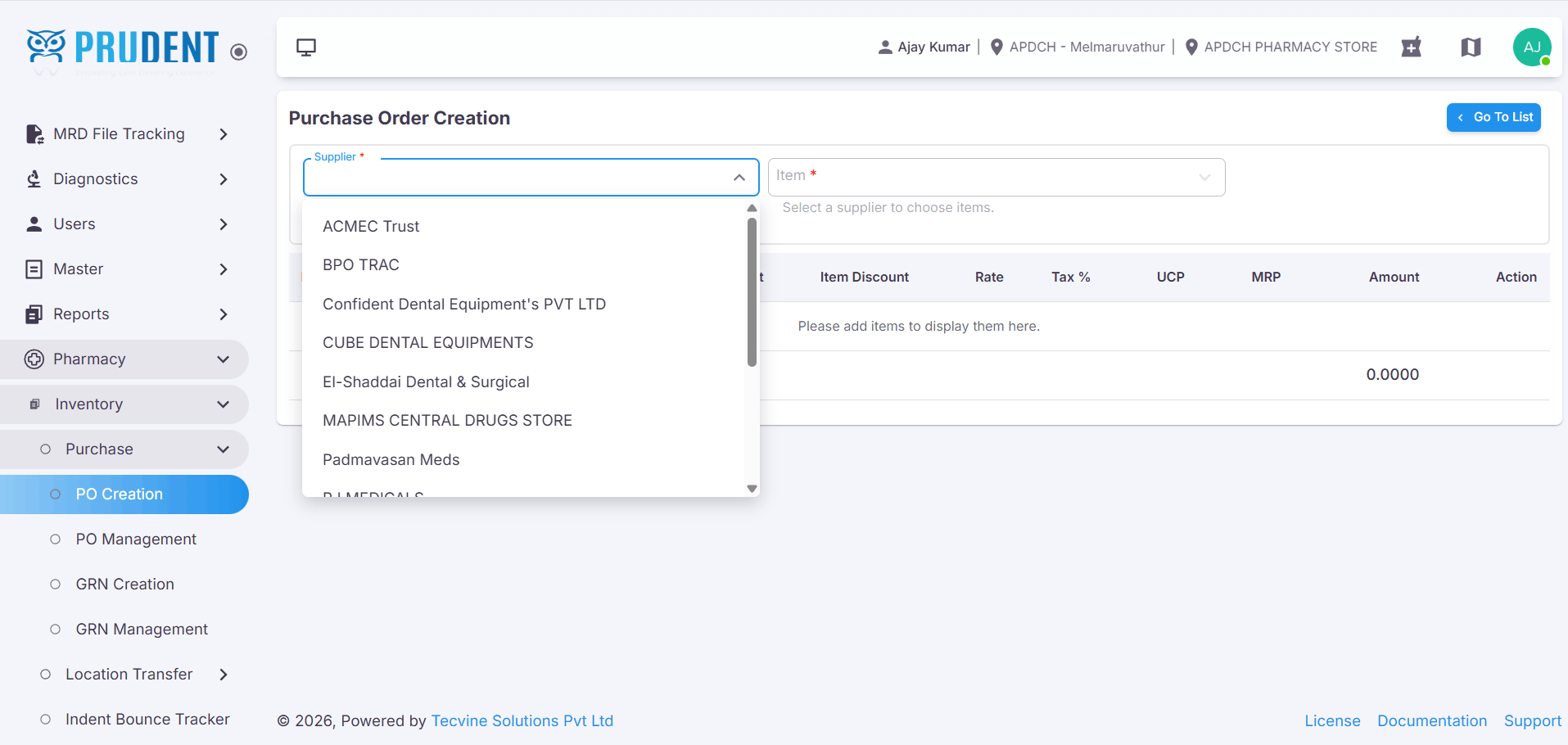
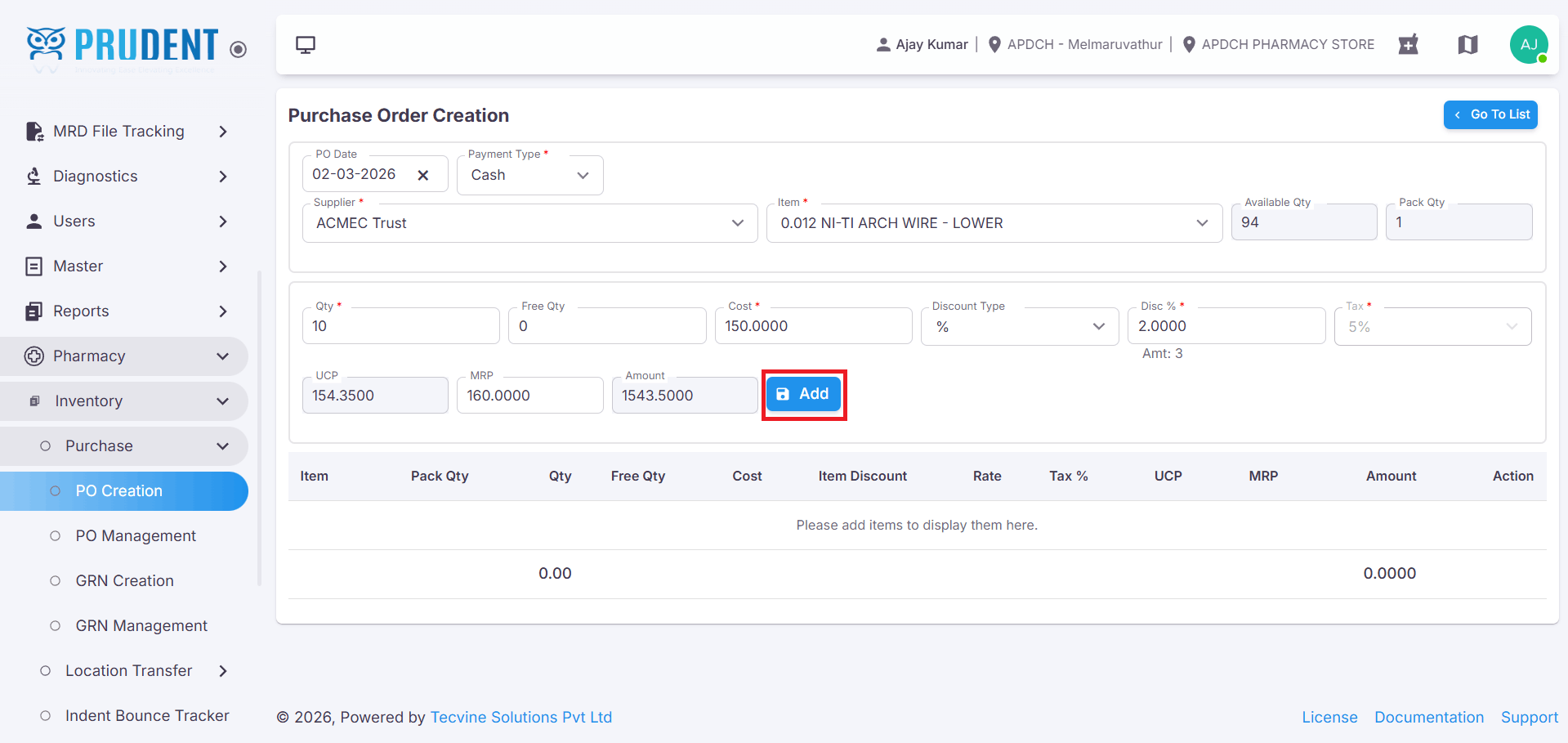
¶ Select Supplier
After selecting the Supplier, the PO Date and Payment Type fields will automatically appear.
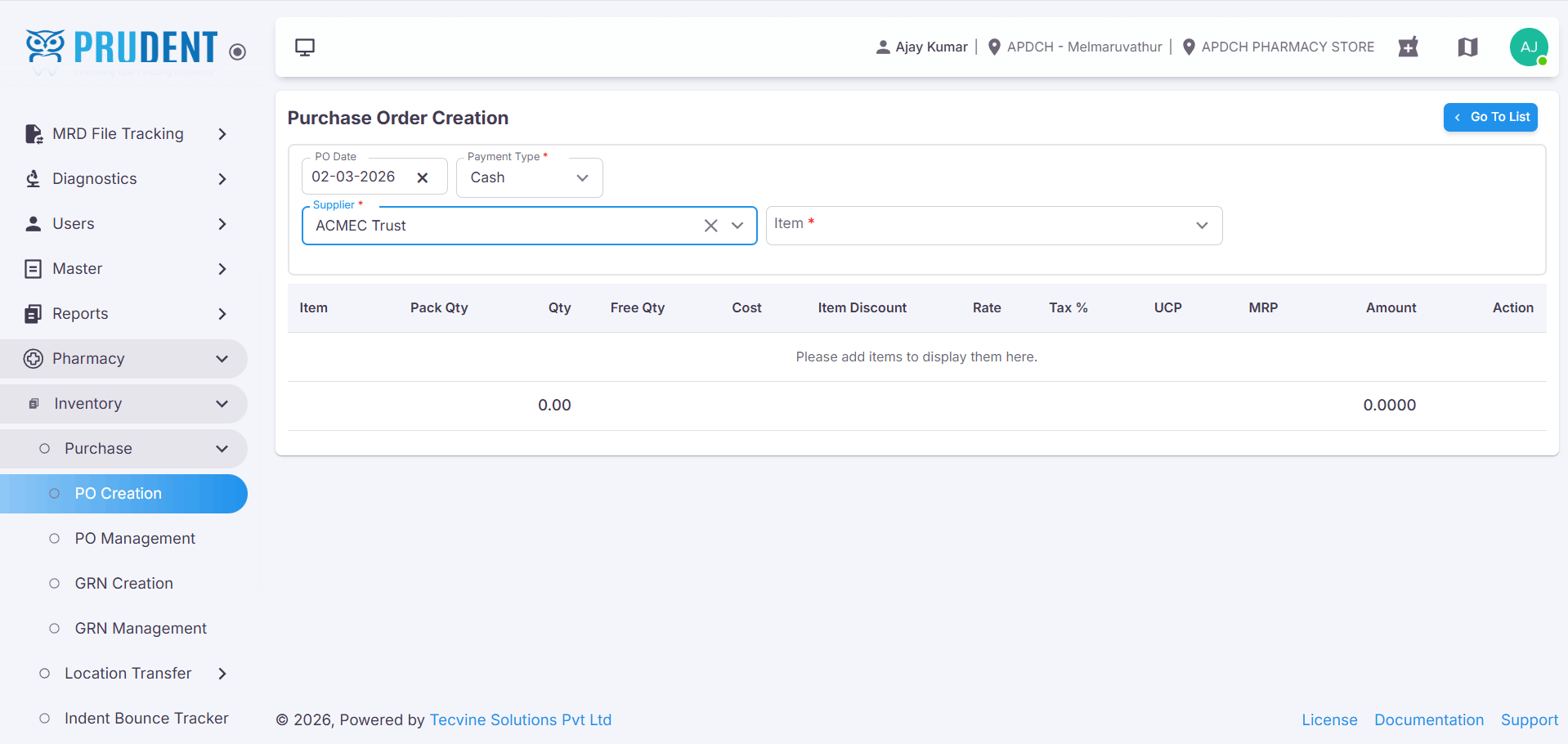
¶ Enter Item Details
¶ Enter the Quantity
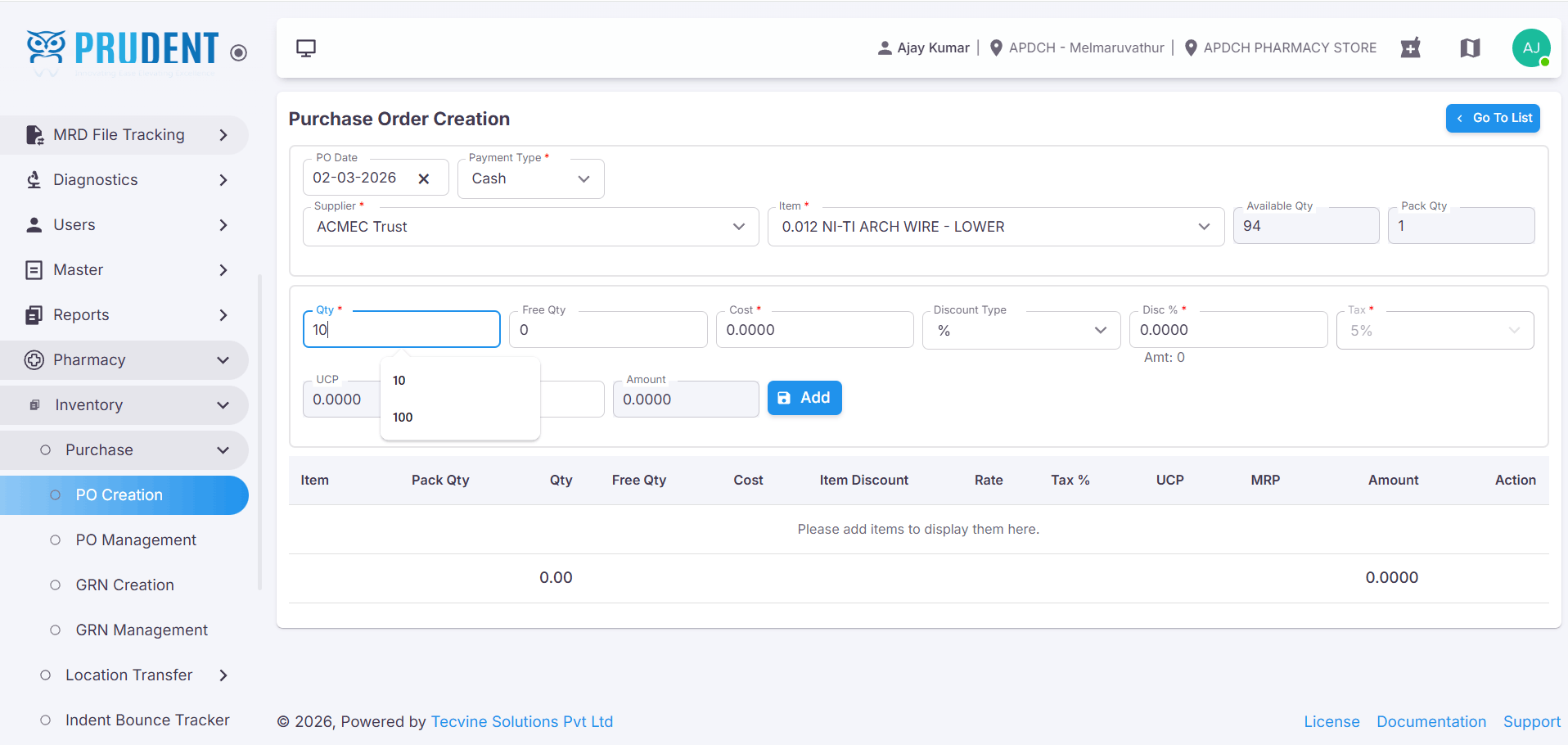
¶ Enter the Cost
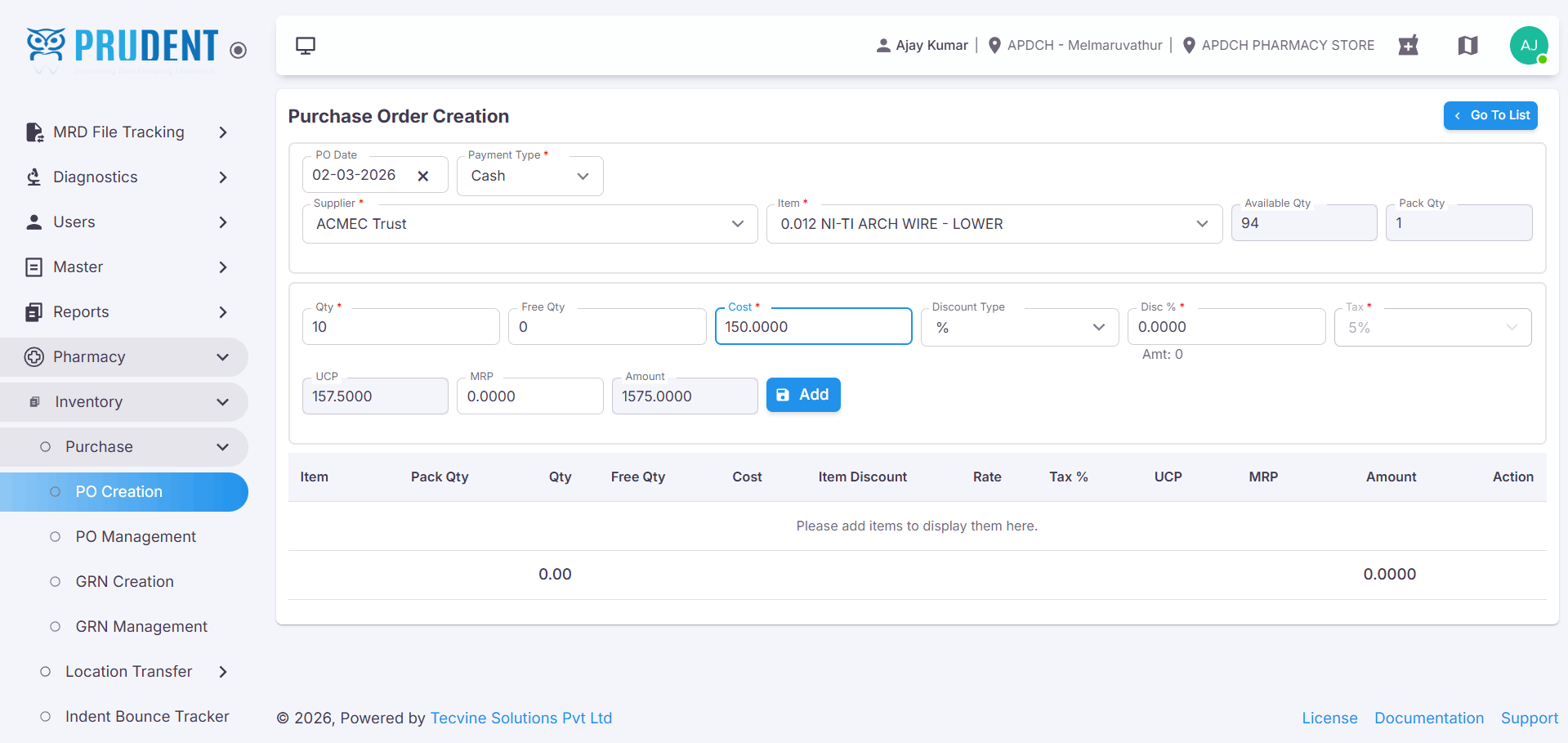
¶ Enter the MRP

¶ Choose the Discount Type using the dropdown
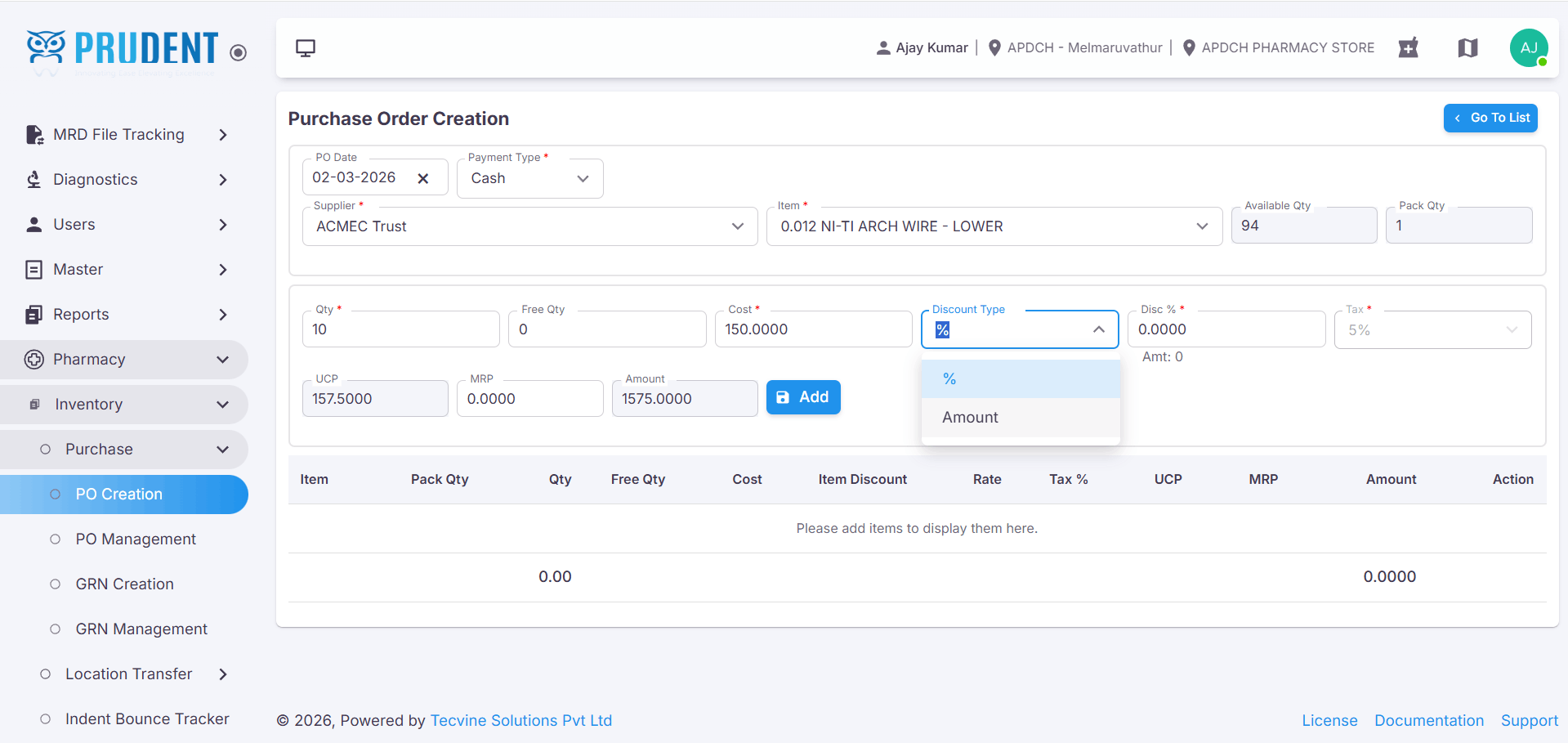
¶ Enter the Discount Amount
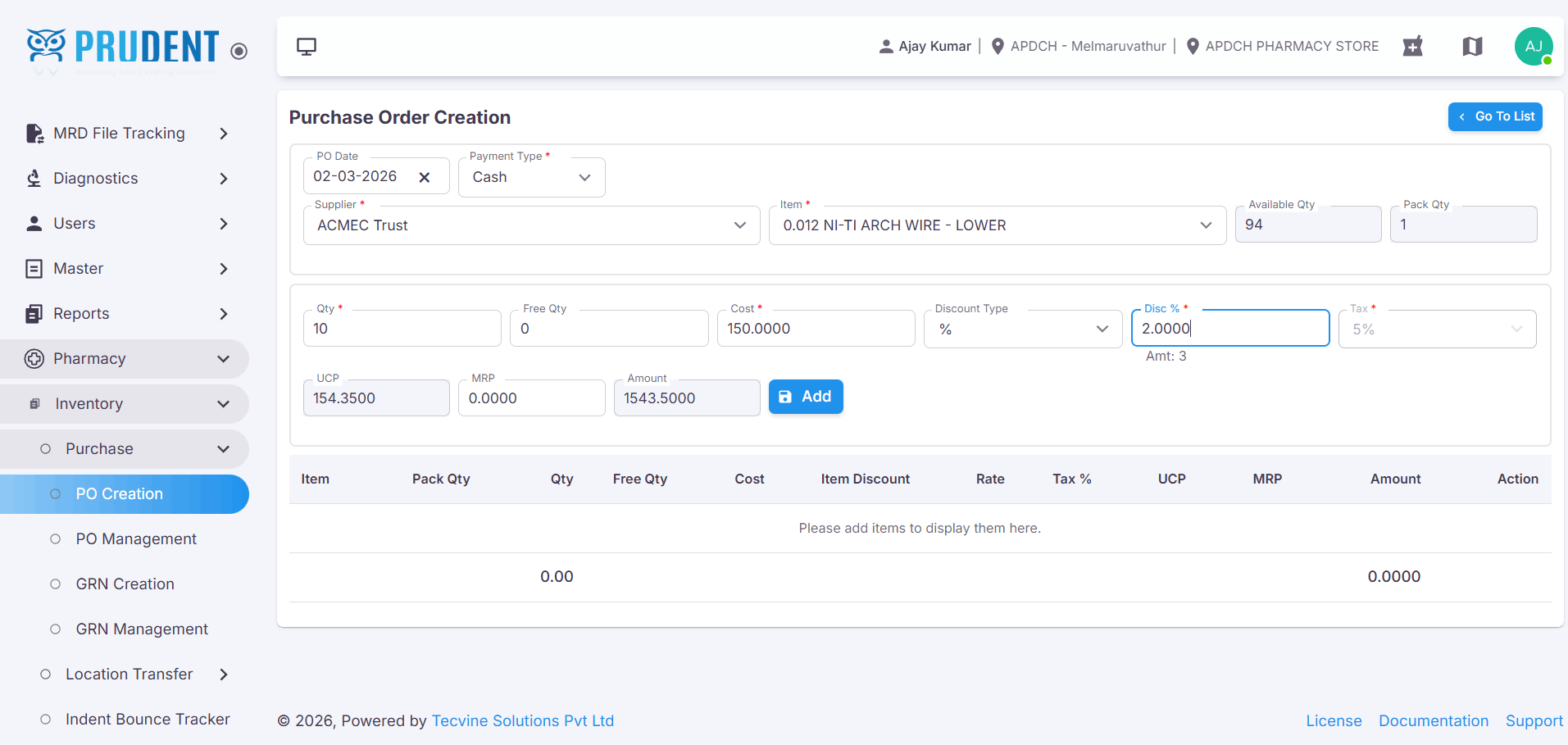
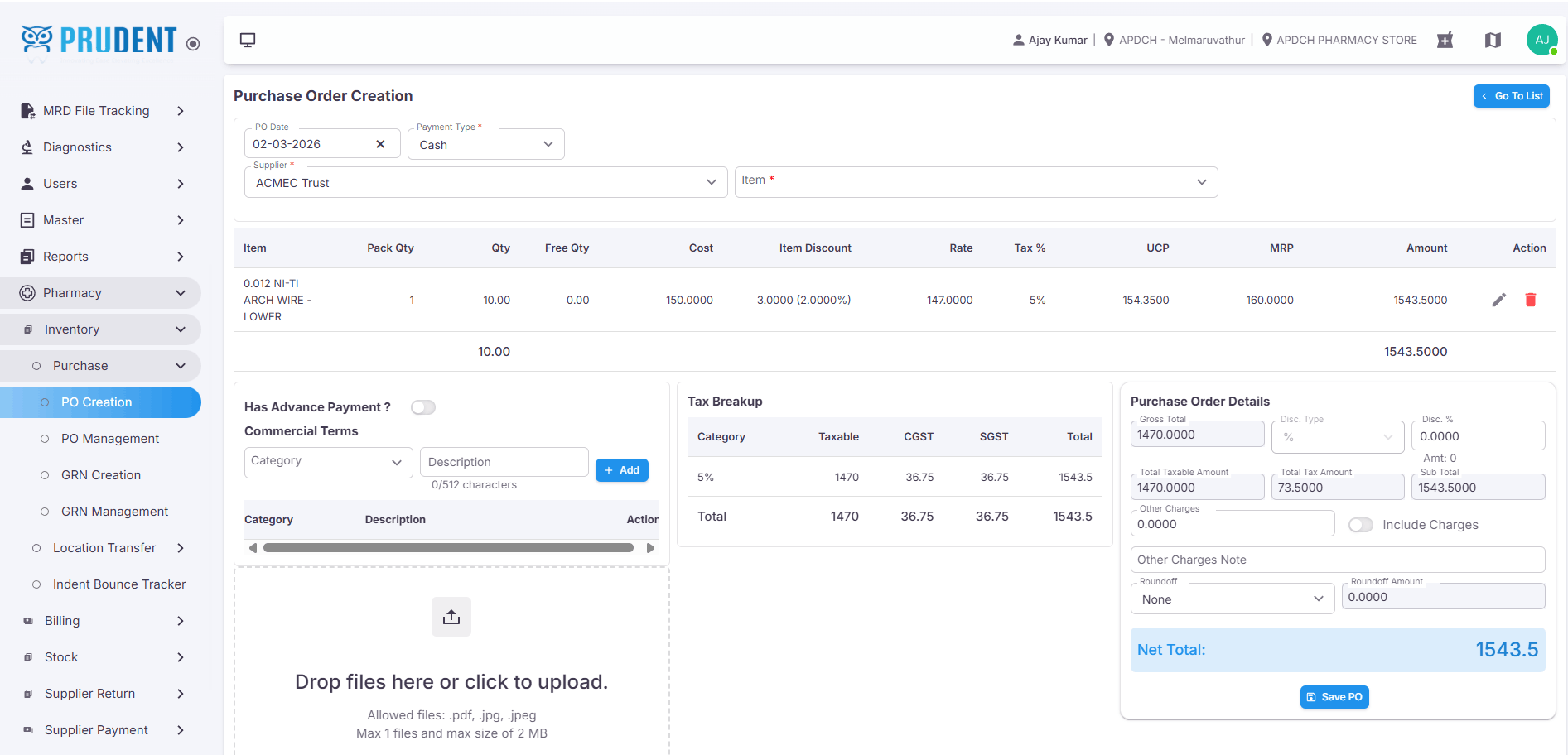
¶ Purchase Order (PO) Management
The PO Management module allows you to approve, reject, view, edit, cancel, print, and close purchase orders.
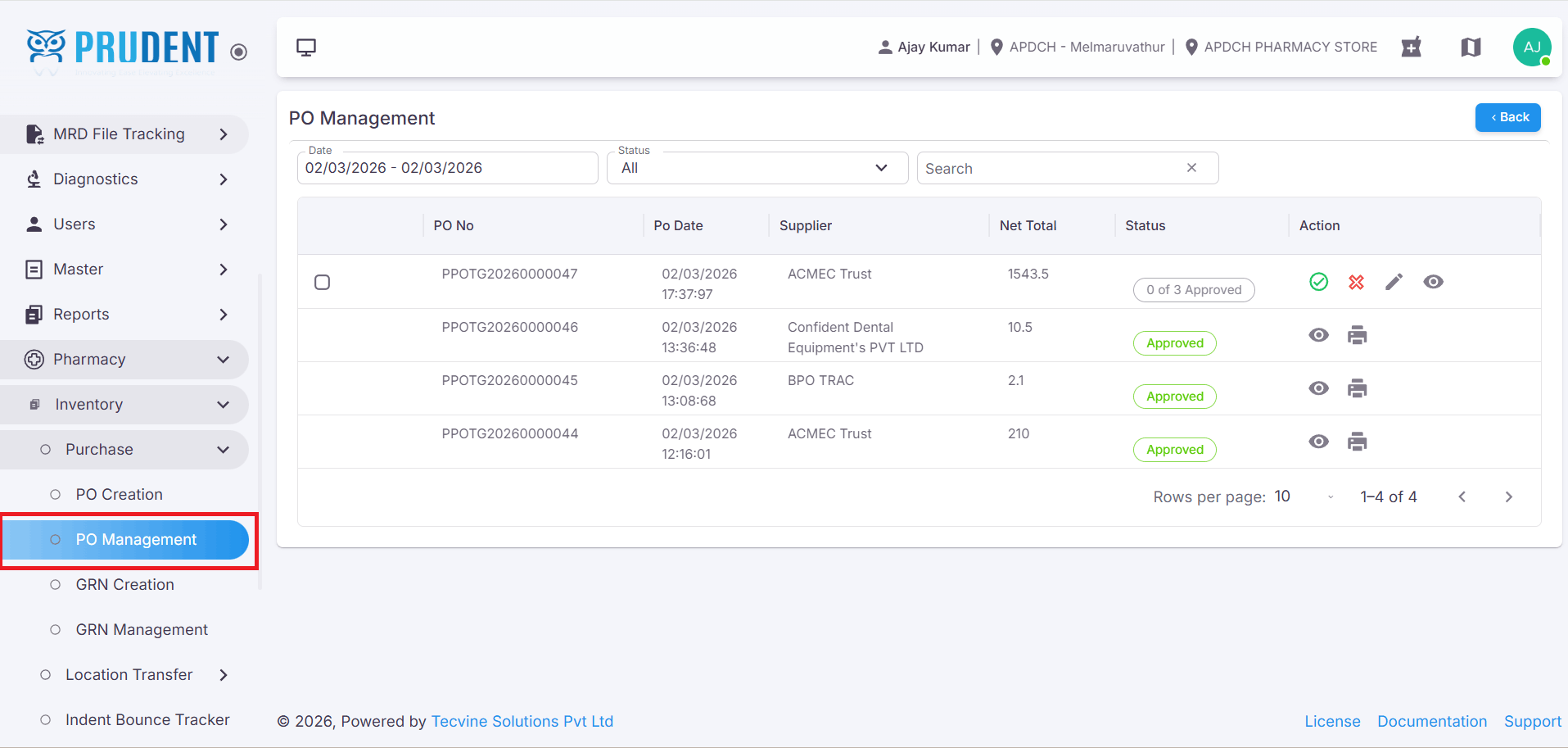
¶ Open PO Management
Click the PO Management button. The system will navigate to the PO Management page where all created Purchase Orders are listed.
¶ Available Actions (View, Edit, Cancel)
In the Actions column, the following icons are available:
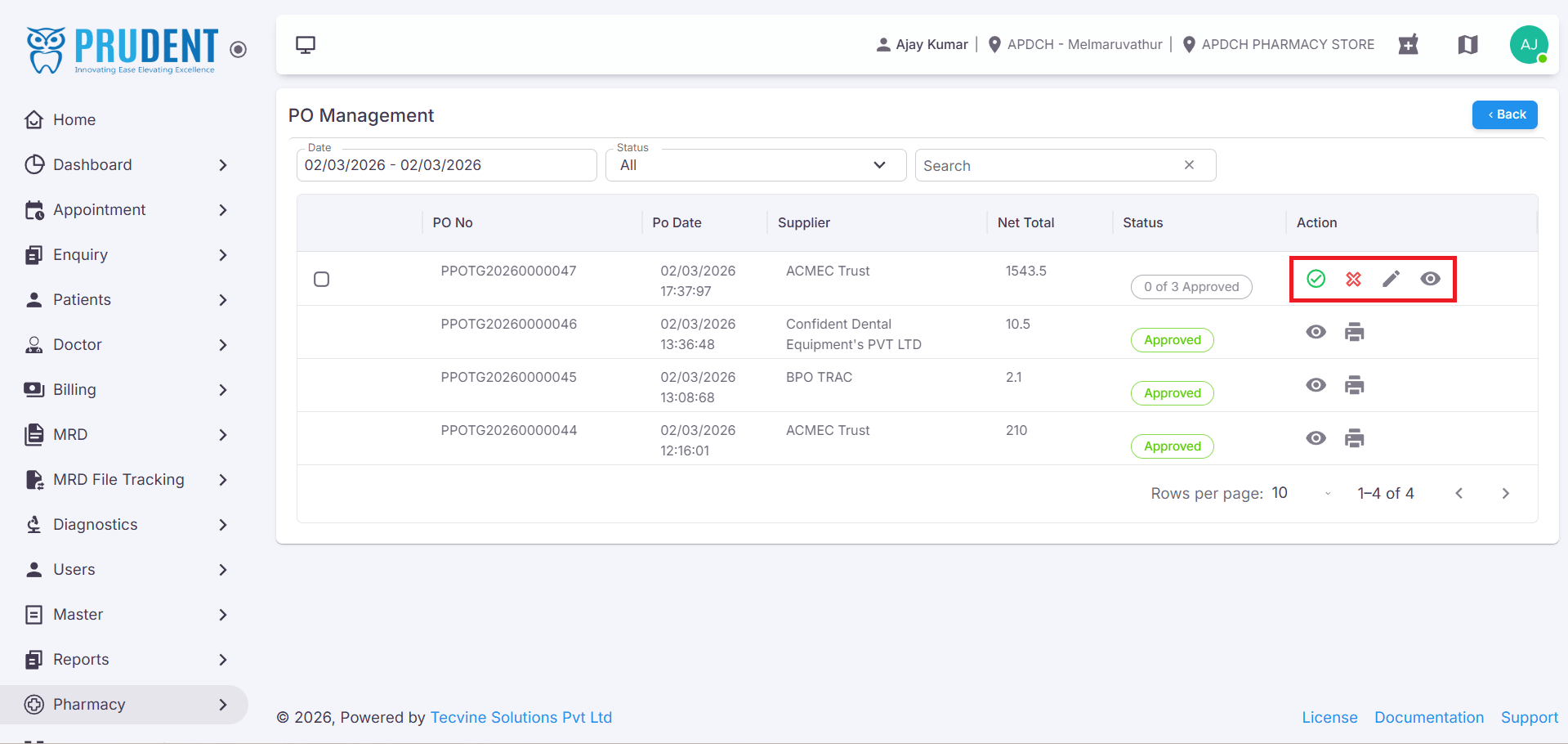
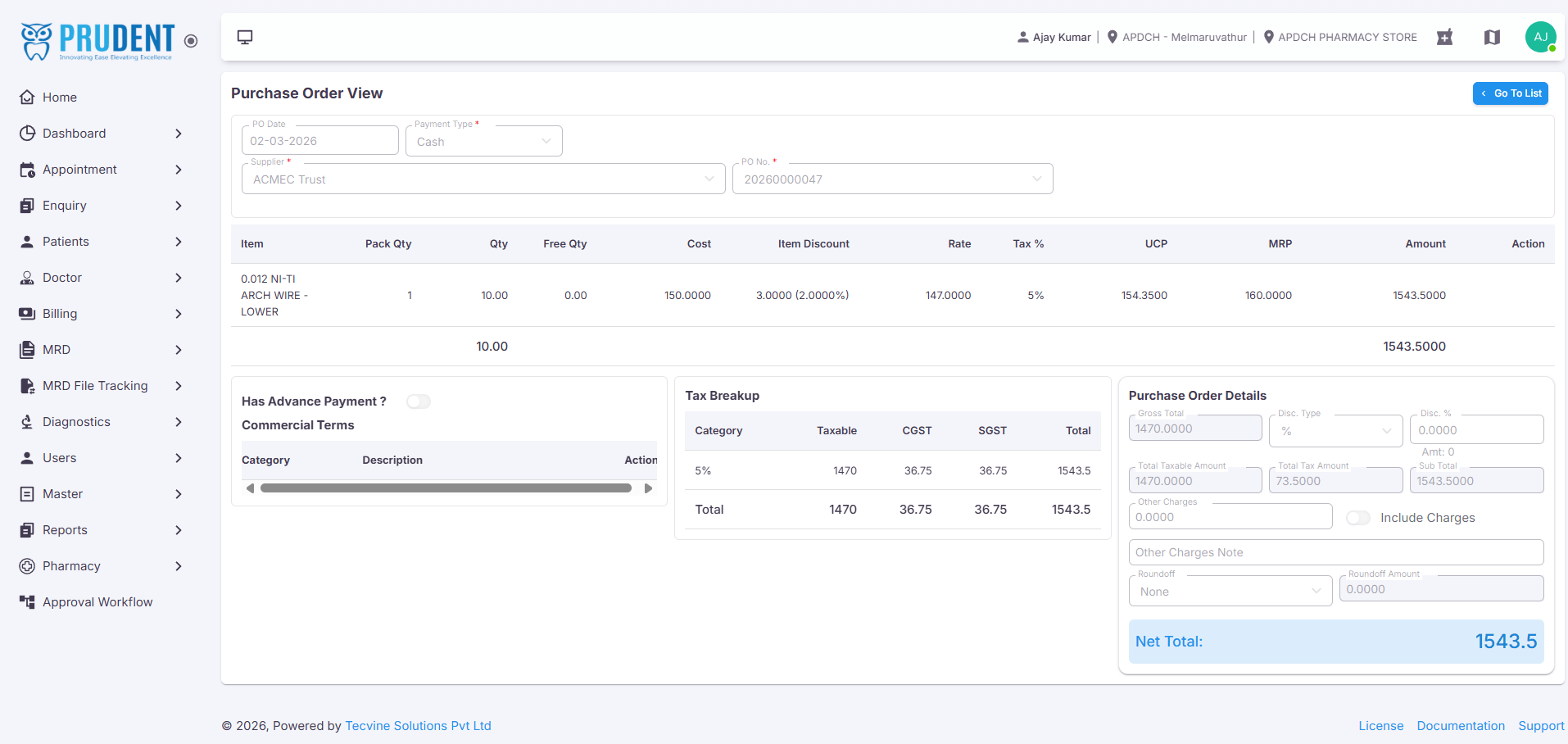
¶ 1. View (👁️ Icon)
Click the View icon to open the Purchase Order in view mode. You can see all PO details but cannot make changes.
¶ 2. Edit (✏️ Icon)
Click the Edit icon to modify the Purchase Order. Editing is allowed only before approval.
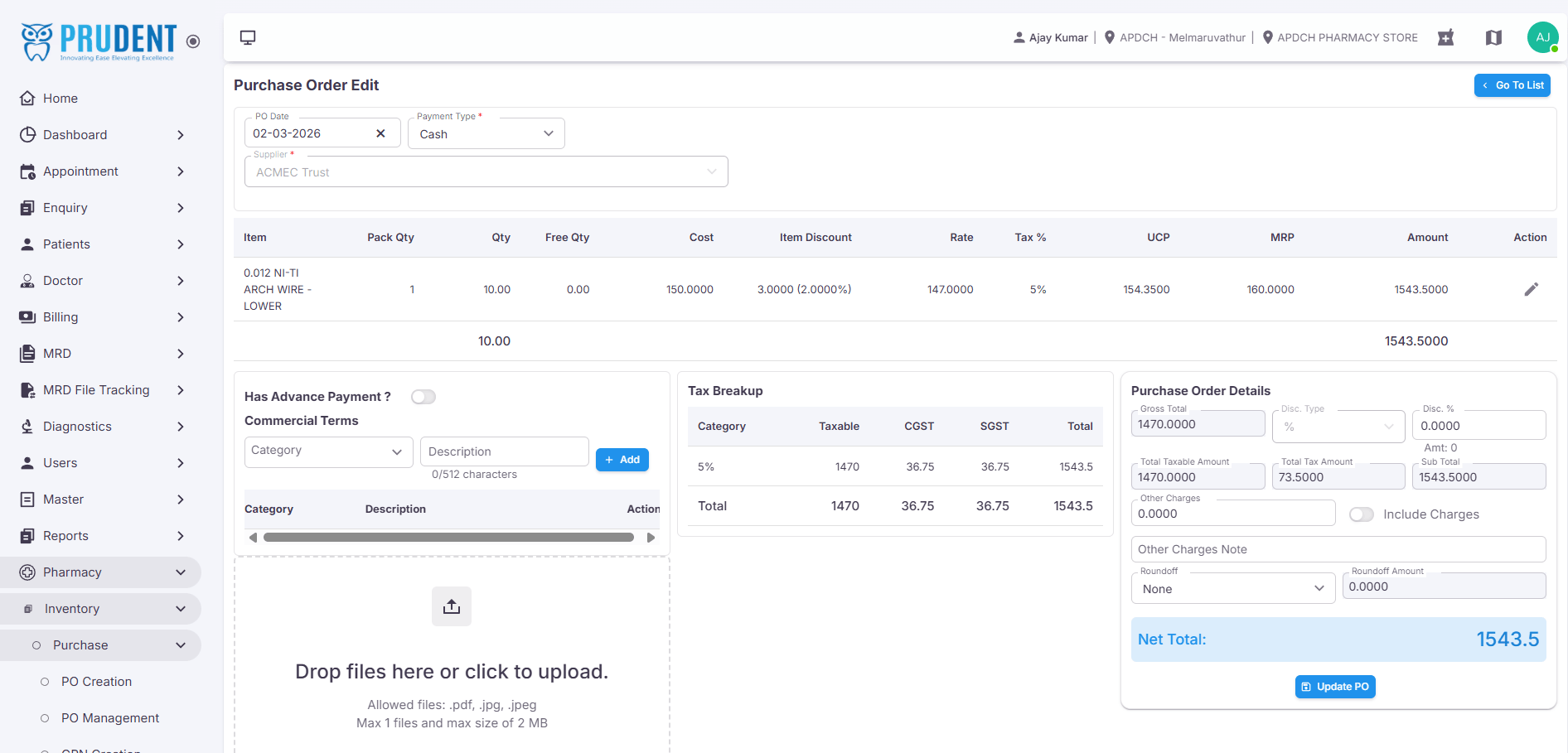
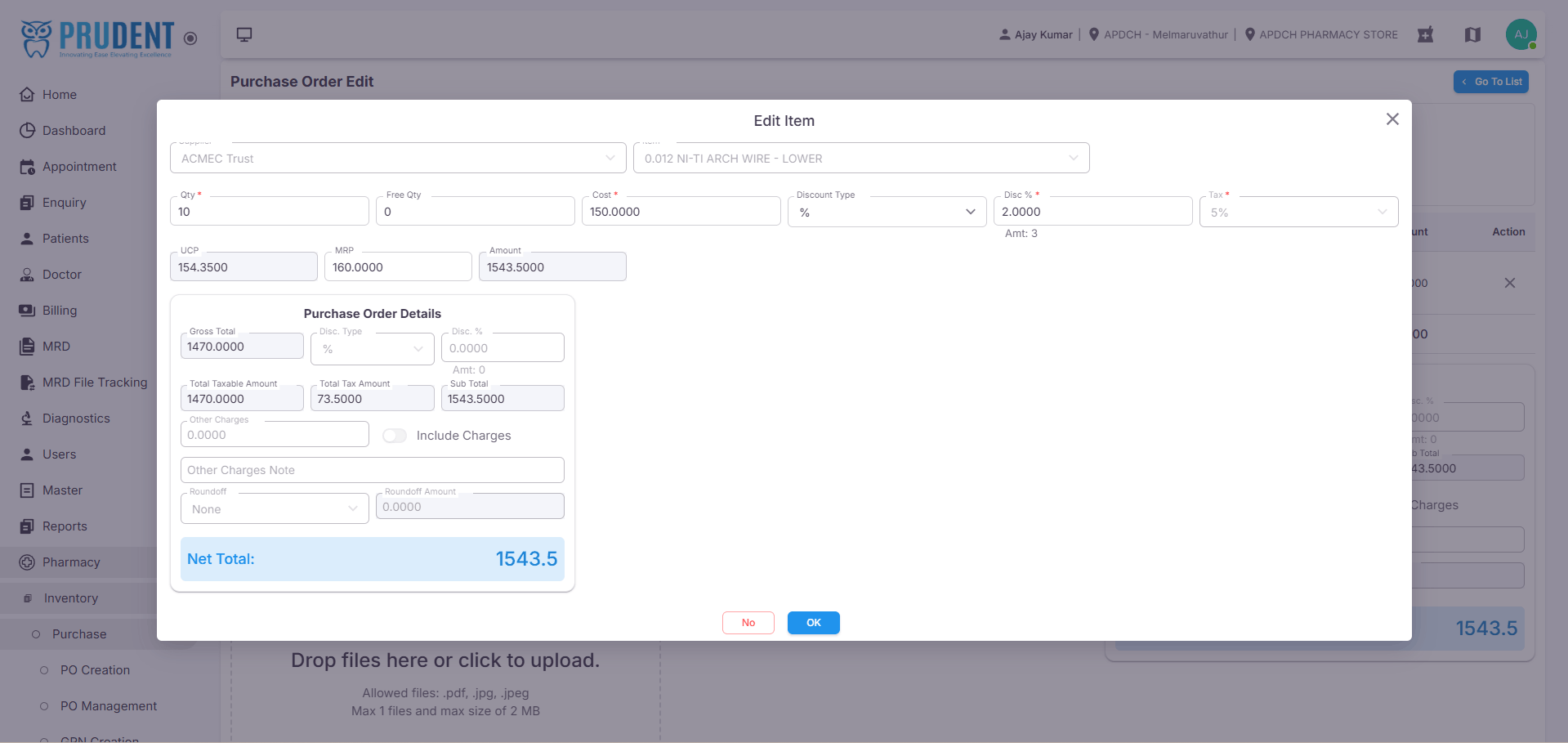
Click the Edit (✏️) icon next to an item to update item details.
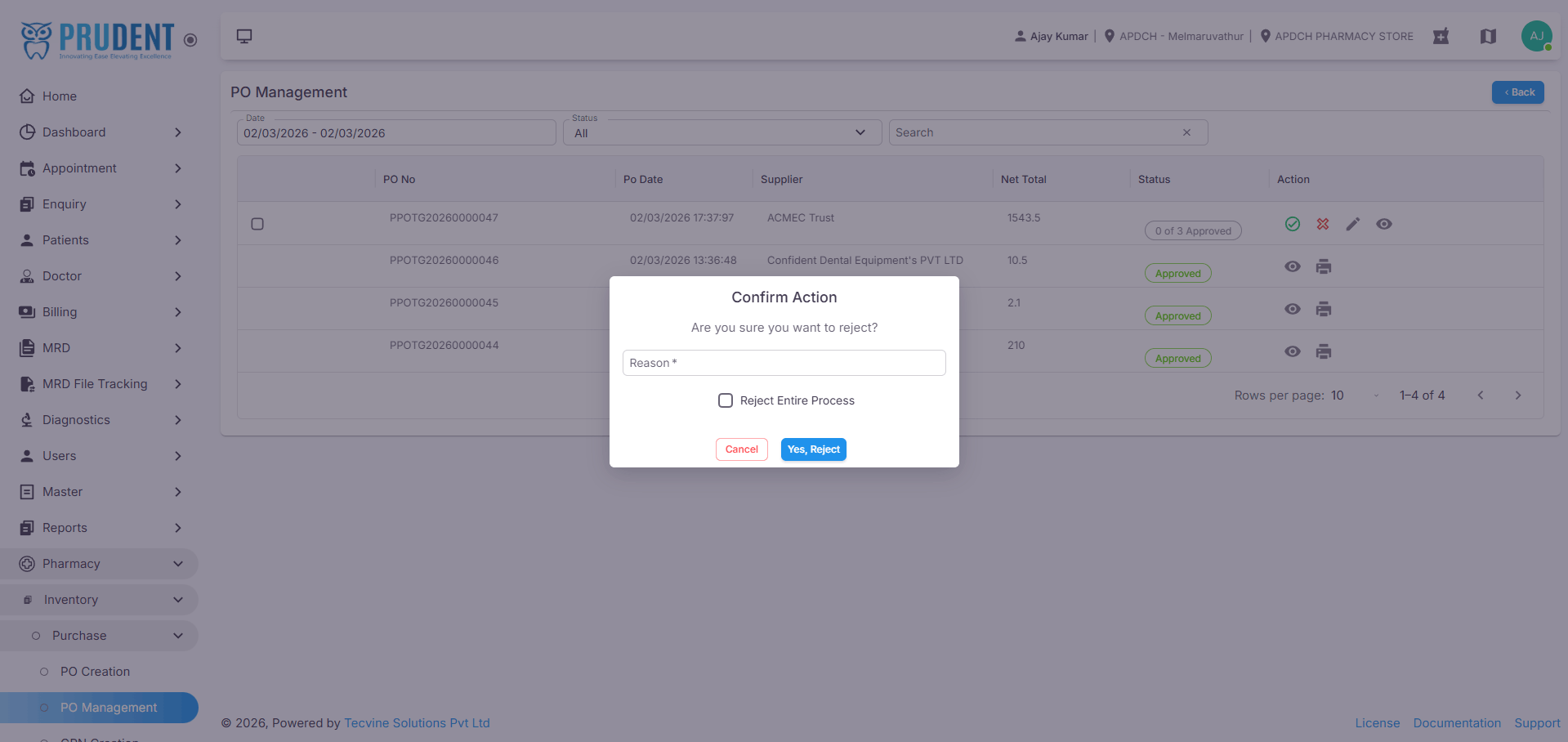
¶ 3. Cancel (❌ Icon)
Click the Cancel icon to cancel the Purchase Order. A confirmation popup will appear asking for the reason for cancellation.
¶ Approve a Purchase Order
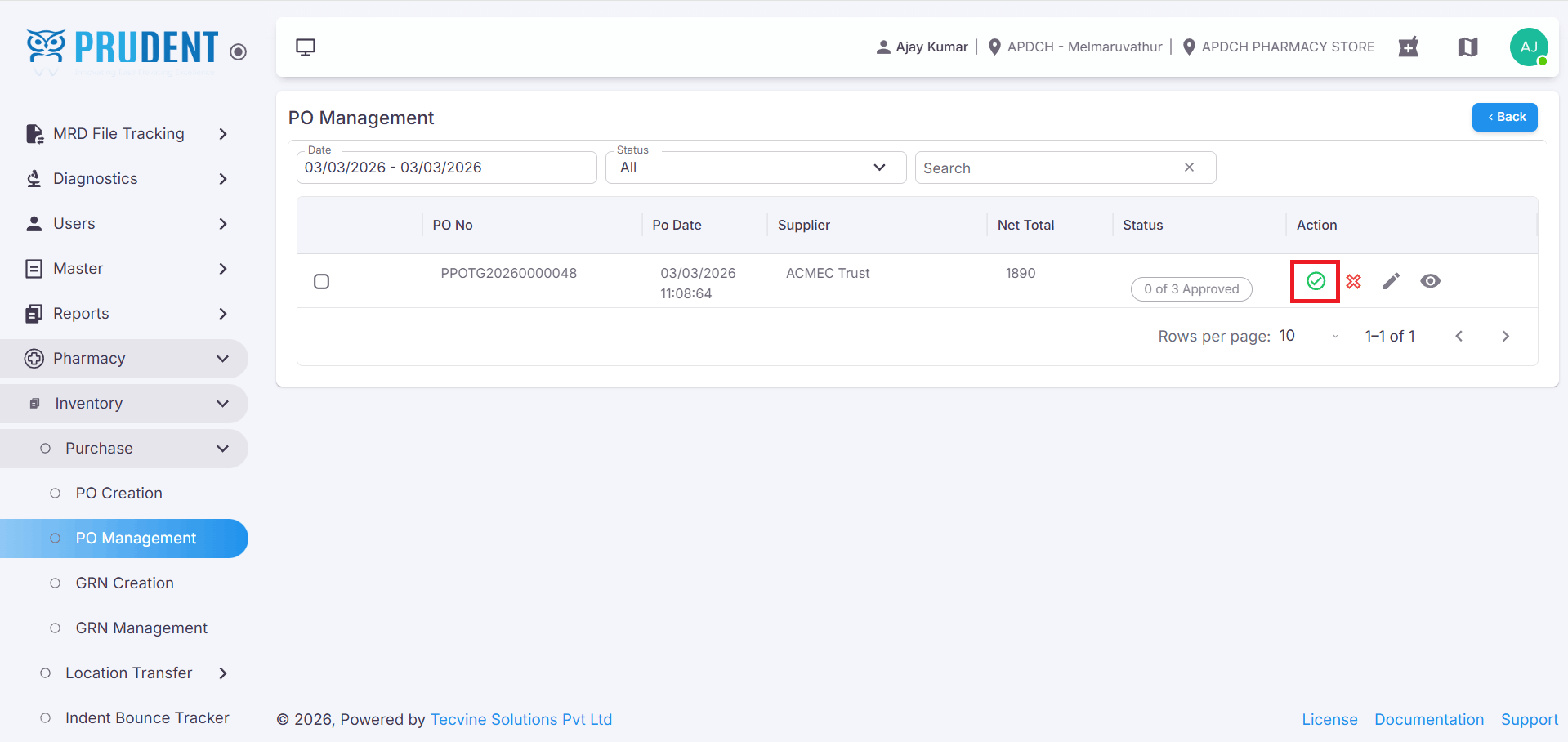
Choose the PO and click the (✔ Icon) for Approve.
A confirmation popup will appear with the message: “Are you sure you want to approve?”
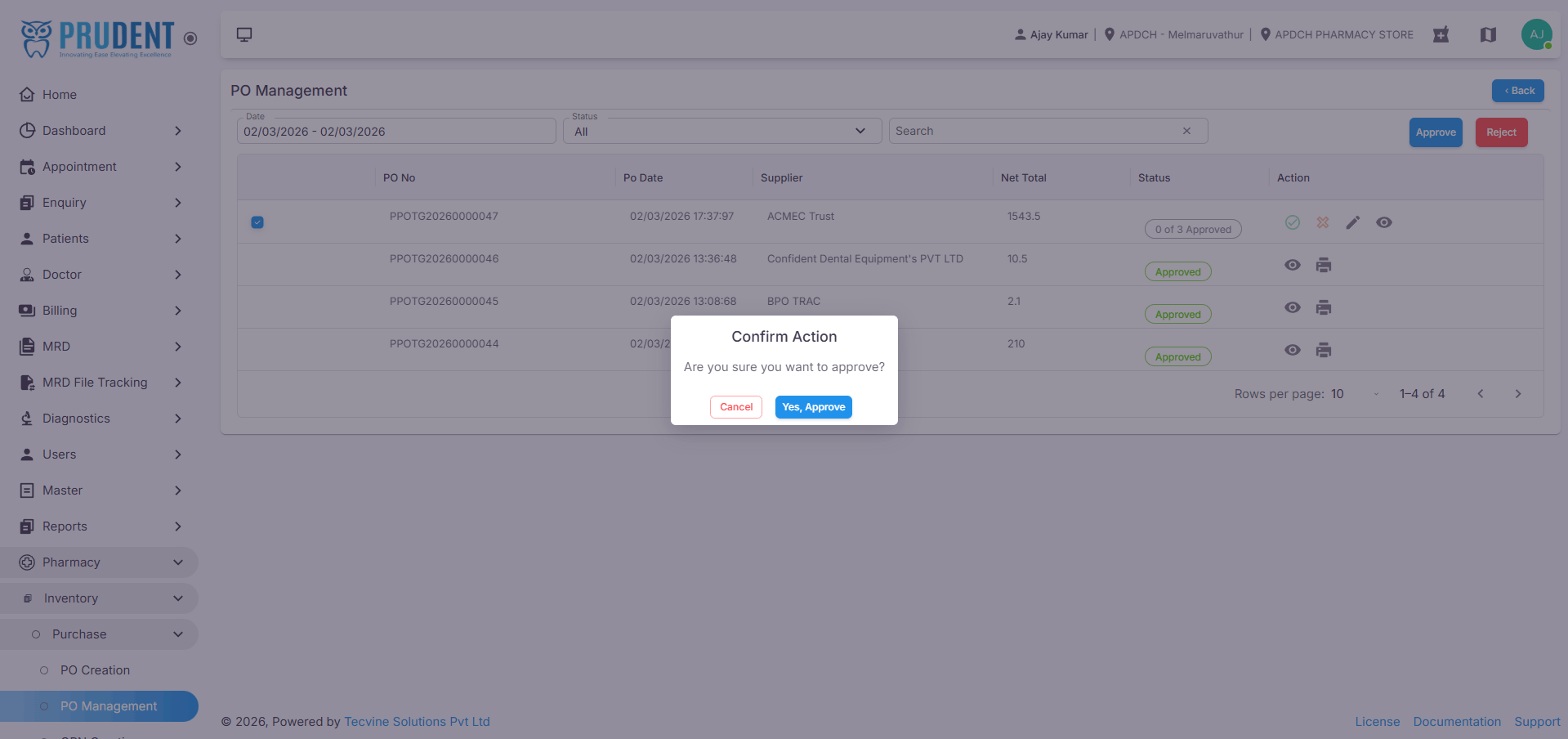
Success: Click OK to confirm approval.
¶ Reject a Purchase Order
Click the (❌ Icon) if the PO needs to be rejected.
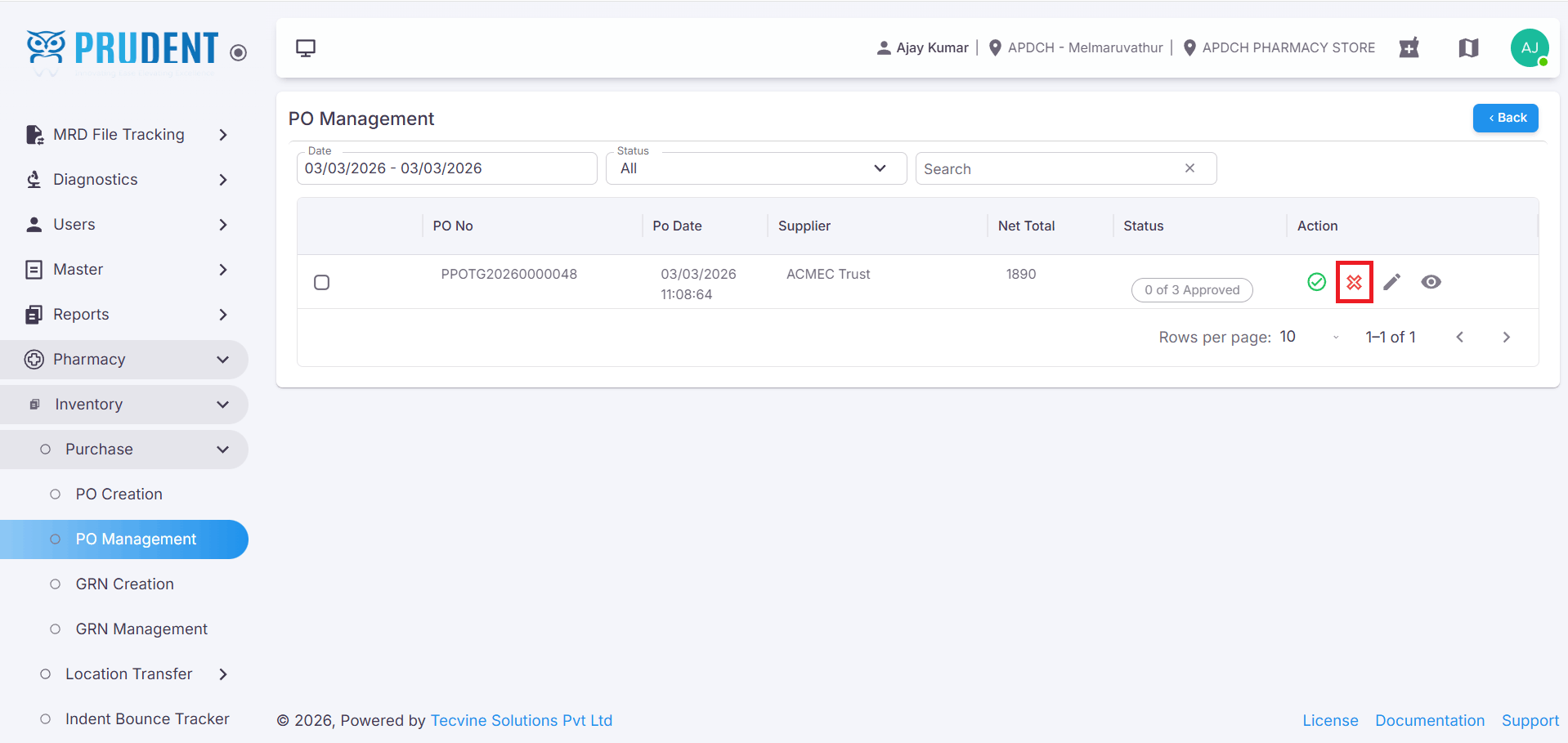
A popup will appear asking for the Reason for Rejection.
¶ After Approval
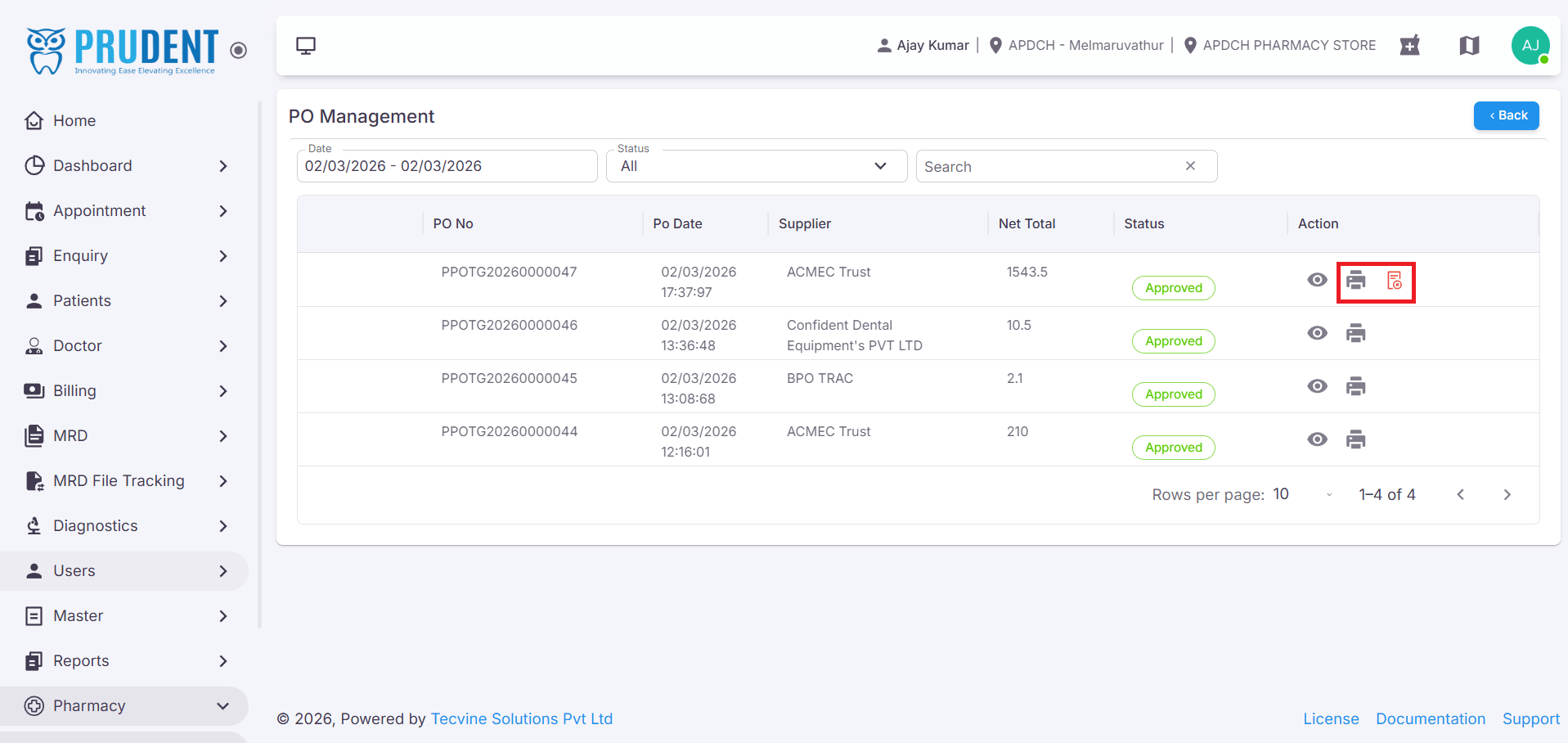
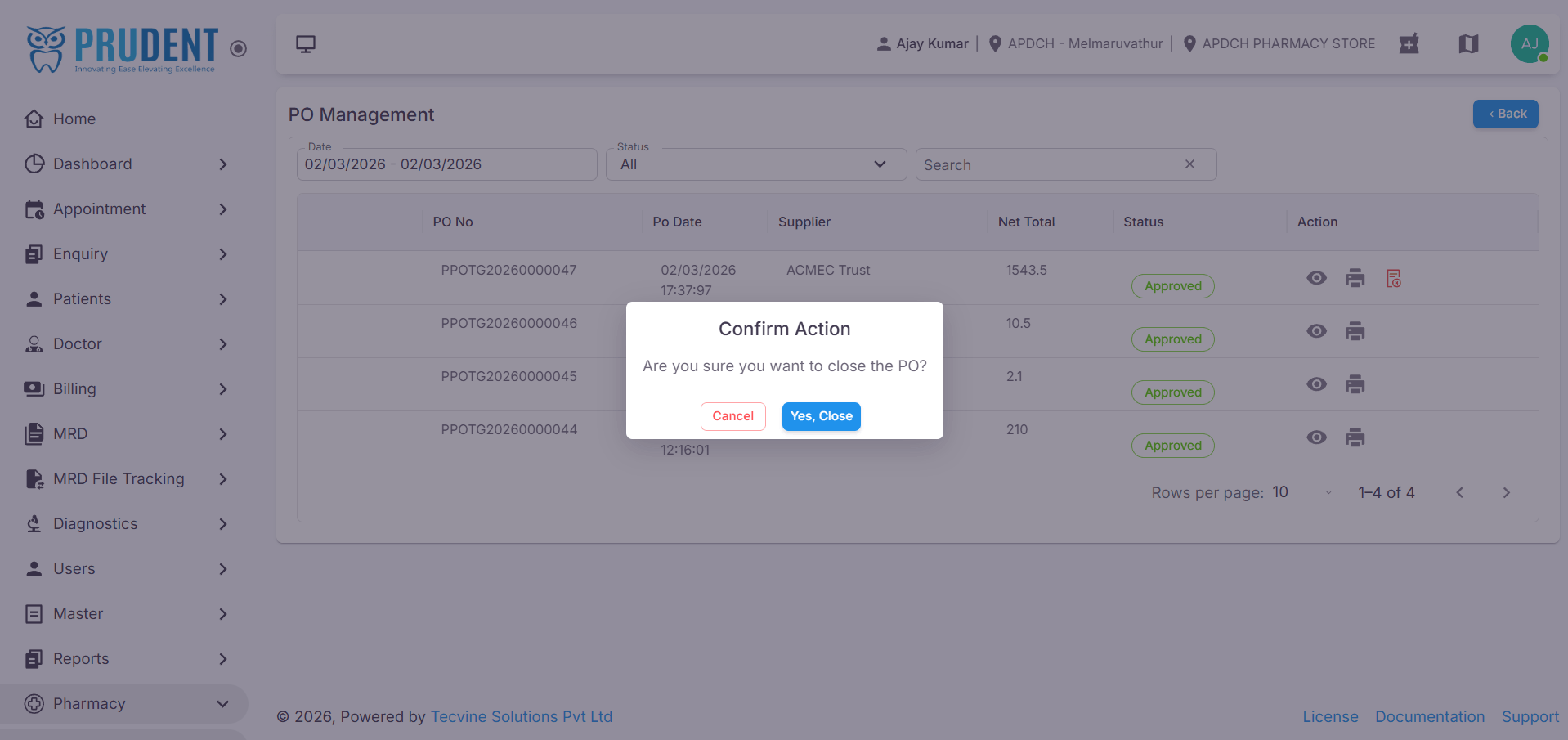
Once the PO is approved, the Print icon and PO Close icon will become visible.
¶ Video Tutorial
Watch this step-by-step video guide to learn how to create a visit in the system.